Setup Page
After pressing the F12 key on the main screen, the left sidebar menu will appear.
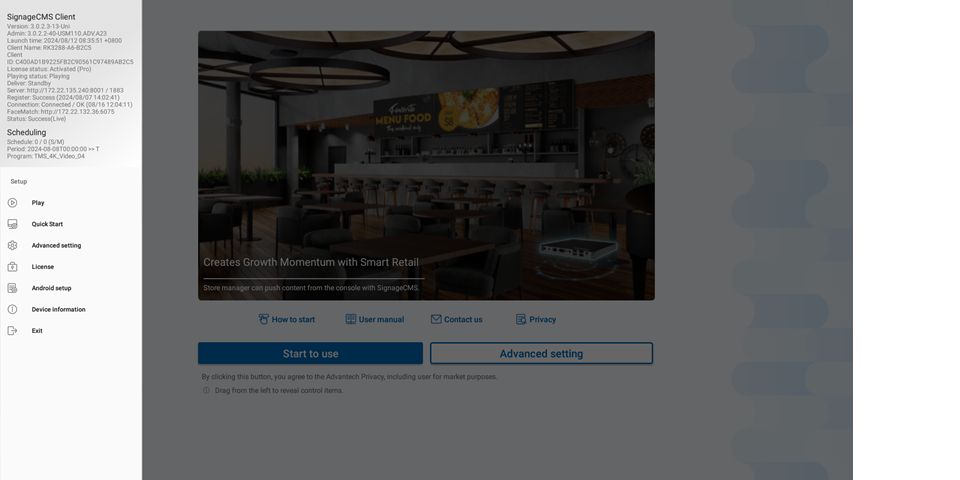
SignageCMS Digital Signage
- Version: The current installed version.
- Admin: The currently installed version of the Admin.
- Launch time: Displays the start time of the current Signage software session.
- Client Name: The name of the player.
- Client ID: The unique ID of the player, used for registration and identification.
- License status: The software license status, which can be either Inactivated (unregistered) or Activated (registered).
- Playing Status: The current playing status, which can be either Standby (idle, displayed when no program or schedule is dispatched) or Playing (currently playing, normal playback).
- Deliver: The status of program/schedule delivery, which includes four states: Downloading update, Updating, Downloading delivery, and Idle.
- Server: The currently registered server and port number.
- Register: The registration status of the player, which can be either Unregistered or Registered.
- Connection: The connection status of the player to the server, which includes two states: Connected and Disconnected.
Scheduling
Schedule: The current playback schedule. Period: The time period during which the schedule will be played. Program: The current program being played.
Setup
Play Button: Restart the default schedule/program. Quick Start Button: Launch quick registration mode. Advanced Setting Button: Access advanced mode.
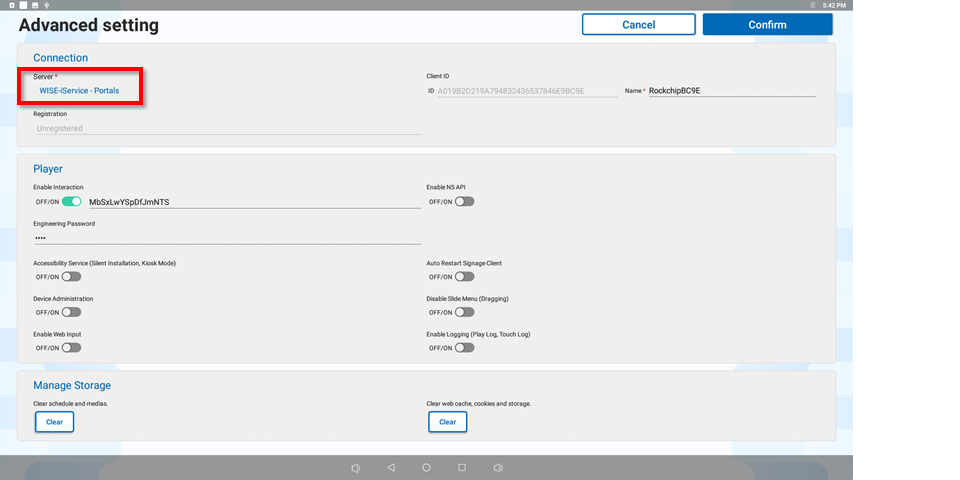
Connection
WISE-iService - Portals(Public Cloud)
After pressing the "Confirm" button, a QR code will appear to register the player to the public cloud.
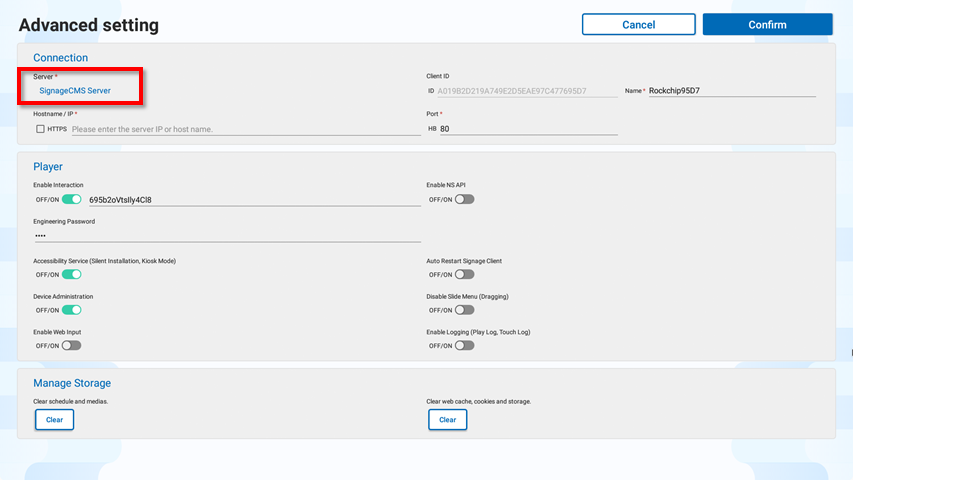
SignageCMS Server(Private Cloud)
Enter the server name or IP and server port, then click the "Confirm" button to register the player to the private cloud.
Player
- Enable Interaction: Set the password for interactive programs; default is 0000.
- Engineering Password: Set the password for engineering settings.
- Accessibility Service (Silent Installation, Kiosk Mode): Obtain system permissions through PSAdmin for full functionality. Must be enabled to acquire complete permissions.
- Auto Restart Signage Client: Automatically restart the software if SignageCMS encounters a critical error. Default is enabled.
- Device Administration: Obtain system permissions through PSAdmin for full functionality. Must be enabled to acquire complete permissions.
- Disable Slide Menu (Dragging): Disable the menu call function via mouse drag. Default is disabled.
- Enable Web Input: Enable web input. Default is disabled.
- Enable Logging (Play Log, Touch Log): Enable detailed logging, which may lead to large storage usage. Default is disabled.
Storage Management
- Clear Schedules and Medias: Clear the delivered schedules and media files.
- Clear Web Cache, Cookies, and Storage: Clear the stored web cache, client data (Cookies), and storage files.
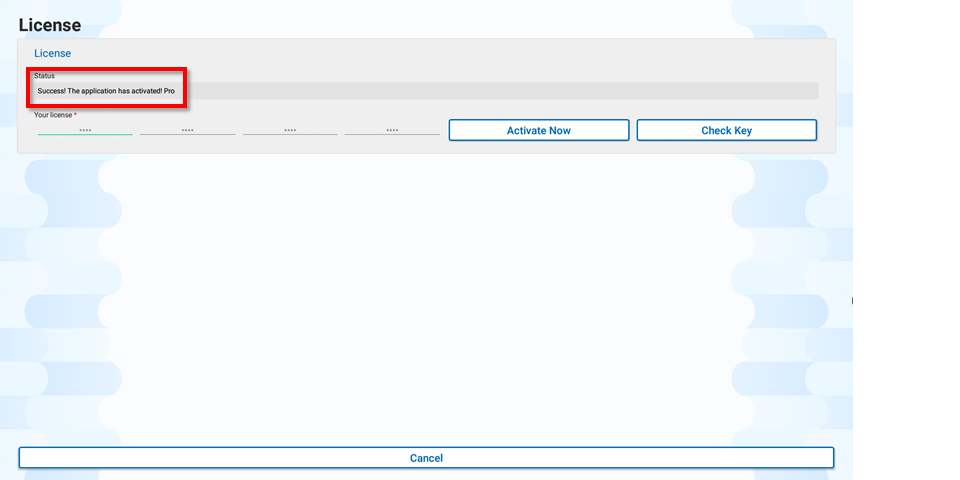
License Setup Button: Launch the serial number mode.
The license can be activated on this screen.
Android Setup: Access the Android system settings screen. Device Information: Access the Android system's device information screen.
Exit Button: Exit the SignageCMS software.