Deploy Containers to Device
Prerequisites
- Please check the Prerequisites & Basics section before starting the deployment process.
- Please complete the Onboard Your Device tutorial first, and make sure your target device is already registered and connected.
- Before running any request, select the
weda-coreenvironment in Postman and confirm required variables are filled.
Workflow Overview
Deploying containers to your WEDA Edge device involves operations on both Advantech Catalog (ACC), WEDA Cloud, and WEDA Edge. Before running the detailed API steps, review the flow below to understand the complete user journey.
In this chapter, the flow is:
- Choose container from Advantech Catalog (ACC)
- Register container registry configuration (Cloud)
- Create stack config with docker-compose (Cloud)
- Deploy stack to device (Cloud → Edge)
- Verify deployment status (Cloud)
- Manage container commands (Cloud)
1. Choose Container from Advantech Catalog (ACC)
The Advantech Container Catalog provides pre-built containerized applications that are optimized for WEDA Edge devices.
1. Access the Catalog
Visit the Advantech Catalog and browse available containers.
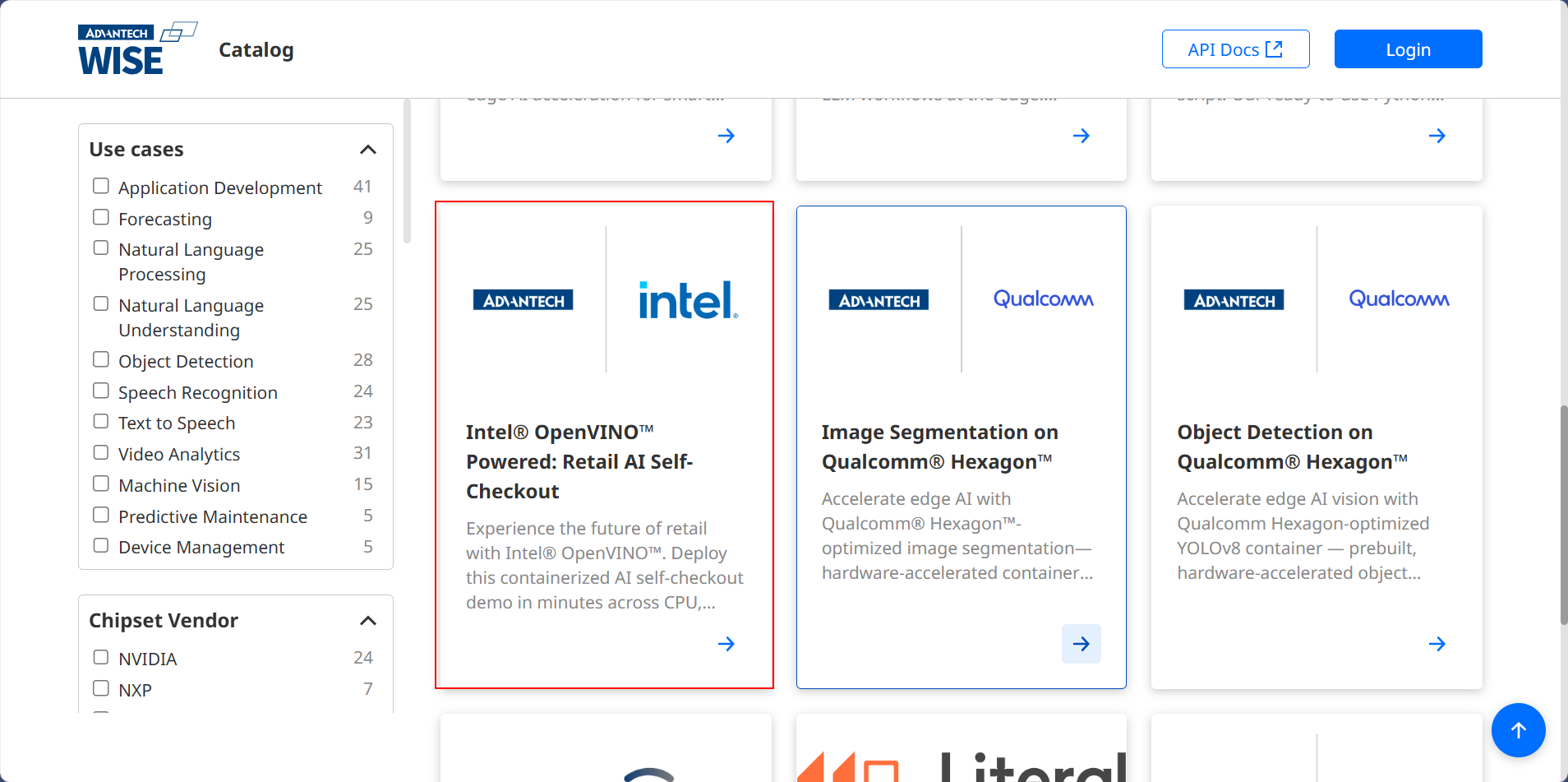
2. Select a Container
Choose a container that meets your application requirements.
In this example, we will use the container shown in the image: Intel OpenVINO Powered: Retail AI Self-Checkout.
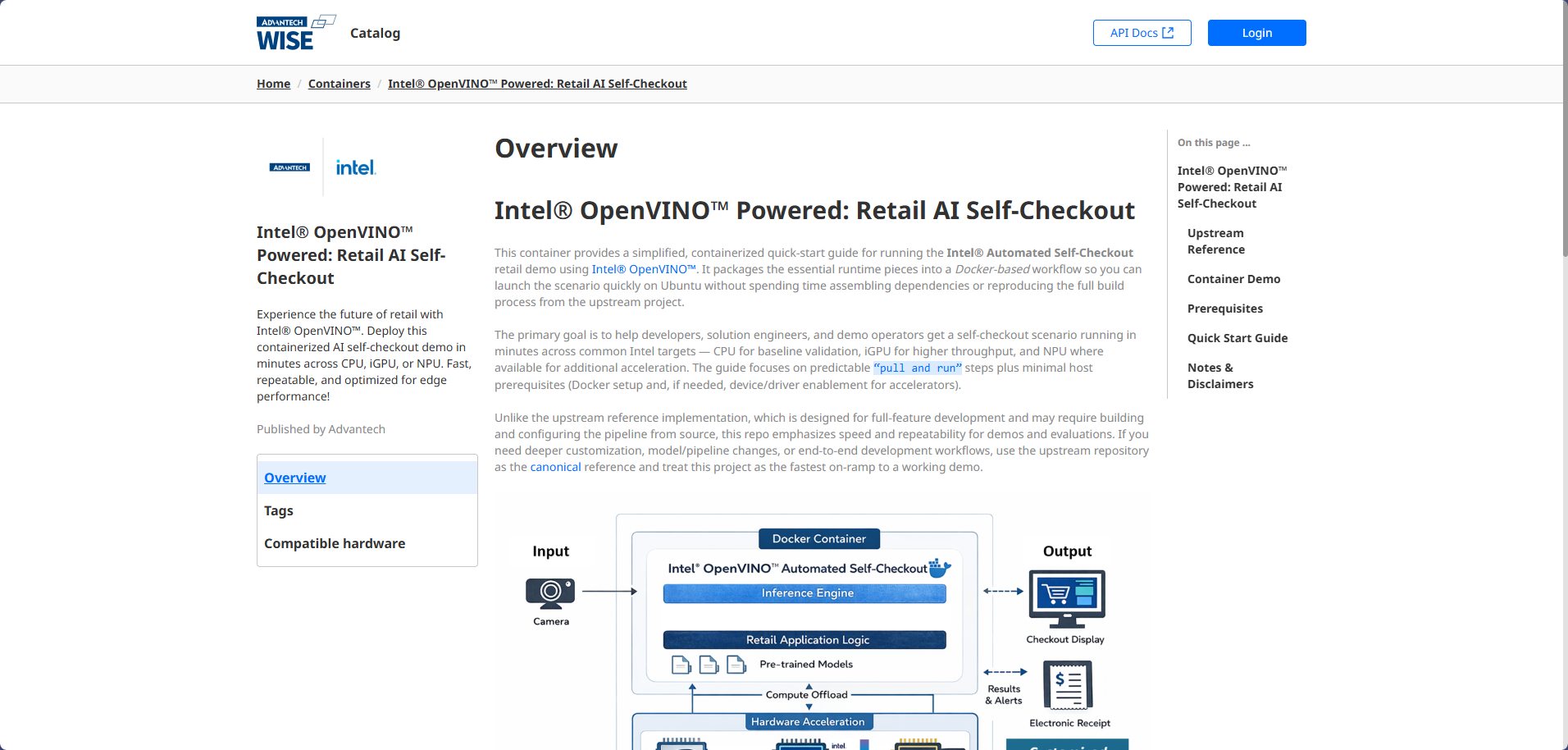
In Advantech Container Catalog, some containers are Ready-to-use, like the one selected in this example.
There are also more Ready-to-dev containers, which require users to download the source package and build them into a Ready-to-use container application before deployment.
3. Get Docker Compose and Registry Information
Each catalog container entry includes:
- A GitHub repository link with the docker-compose configuration
- Registry information (registry URL and credentials) for pulling the container image
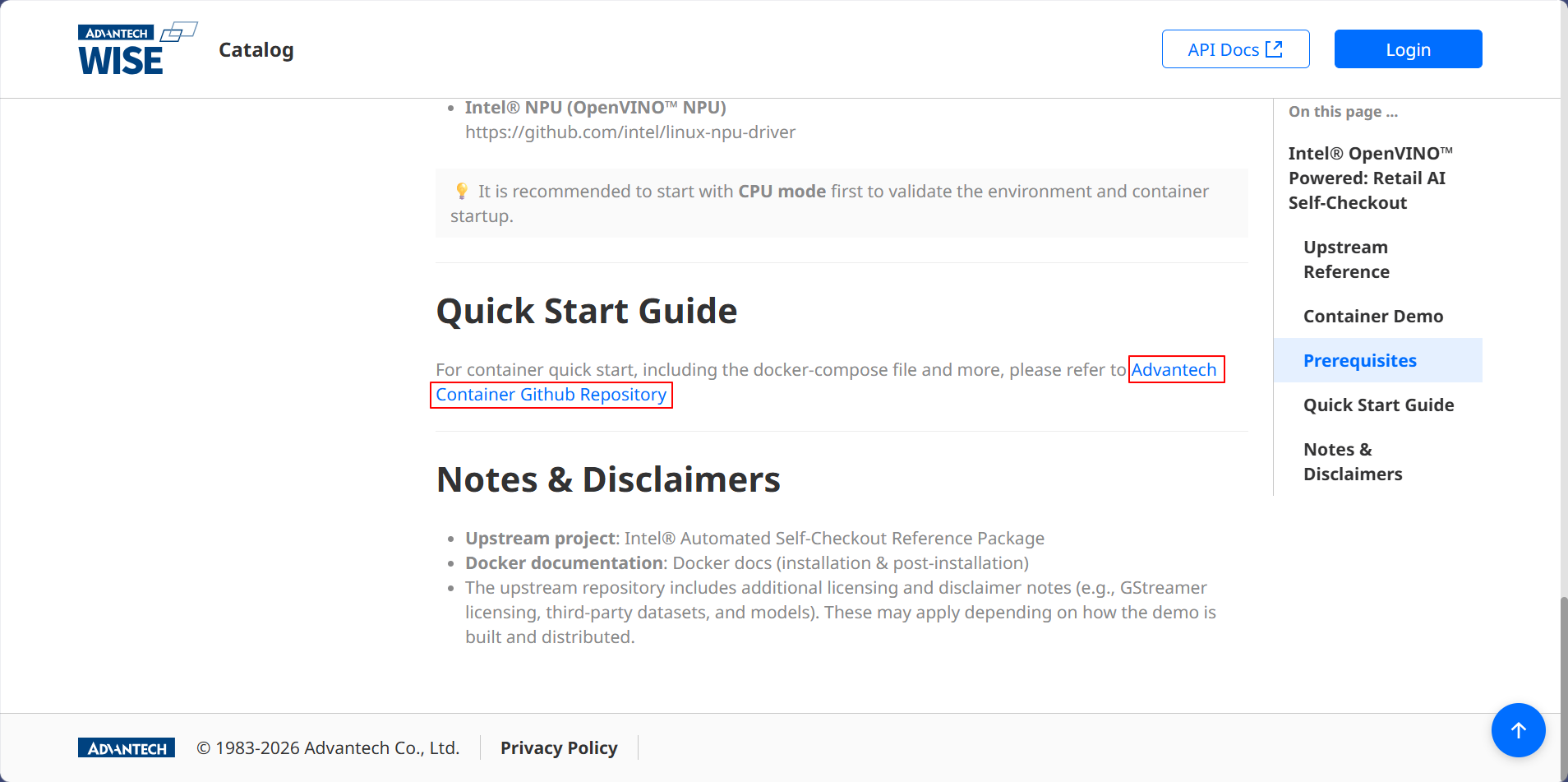
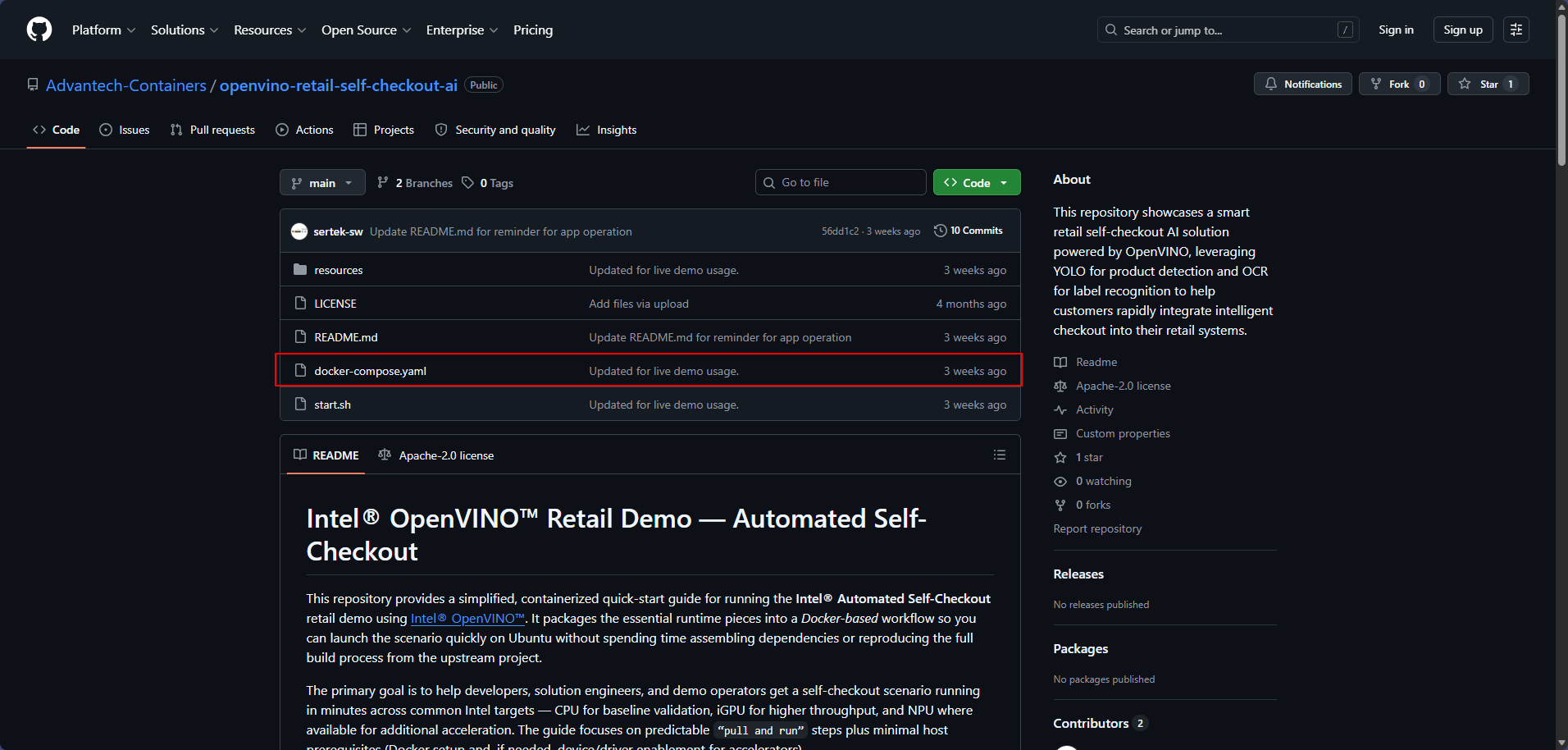
Click the GitHub link to access the repository and download the docker-compose.yml file.
When you select a container from the catalog, take note of:
- The registry URL where the container image is hosted
- The registry credentials (username/password) required to pull the image
- The docker-compose.yml configuration file
These details will be used in the next steps to register the registry and create the stack configuration.
2. Register Container Registry
Before you can deploy a container, you must register the container registry with WEDA Cloud. The registry configuration allows your edge device to authenticate and pull container images from the specified registry.
Postman Collection: 4-Container-Stack > Registry Mgmt
1. Create Registry Configuration
Use the following API to register the container registry with WEDA Cloud.
Create Registry (AWS ECR): Register the container registry with your organization.
While the API is named "AWS ECR", it supports various registry types including Docker Hub, AWS ECR, Azure Container Registry, and private registries.
Expected result: WEDA Cloud returns 201 and provides the created registry configuration.
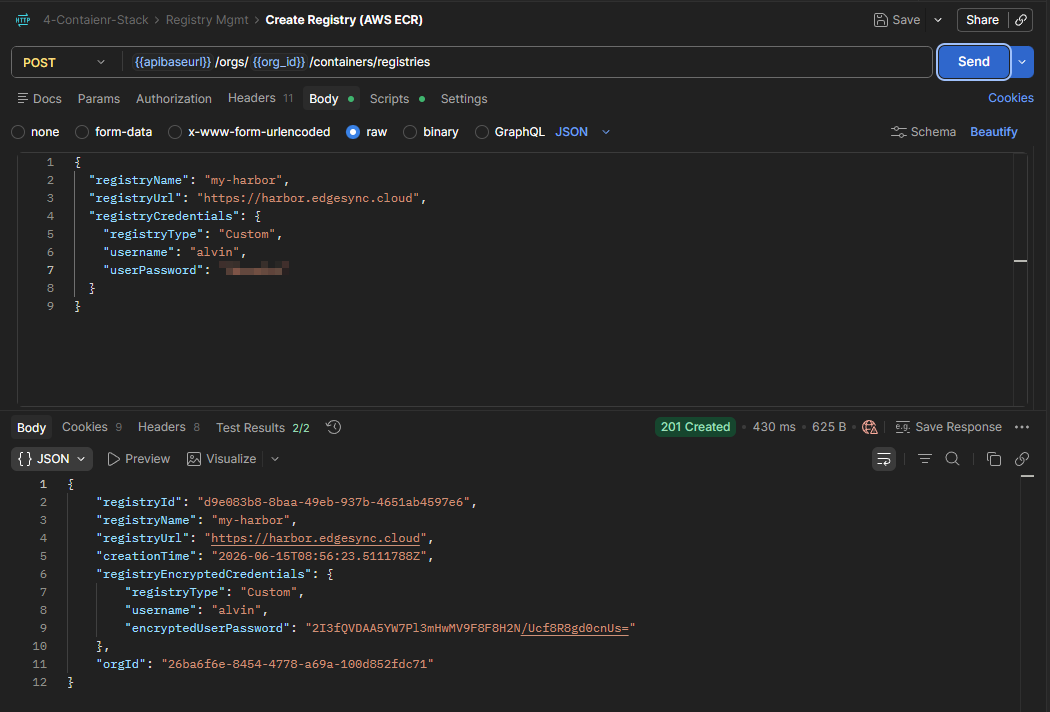
Example Request: Curl
curl --location --request POST 'https://{domain}/{tenantPath}/{appPath}/api/v1/orgs/{orgID}/containers/registries' \
--header 'Content-Type: application/json' \
--header 'Authorization: Bearer {access-token}' \
--data '{
  "registryName": "my-harbor",
  "registryUrl": "https://harbor.edgesync.cloud",
  "registryCredentials": {
    "registryType": "Custom",
    "username": "alvin",
    "userPassword": "---"
  }'
Example Response
{
    "registryId": "d9e083b8-8baa-49eb-937b-4651ab4597e6",
    "registryName": "my-harbor",
    "registryUrl": "https://harbor.edgesync.cloud",
    "creationTime": "2026-06-15T08:56:23.5111788Z",
    "registryEncryptedCredentials": {
        "registryType": "Custom",
        "username": "alvin",
        "encryptedUserPassword": "2I3fQVDAA5YW7Pl3mHwMV9F8F8H2N/Ucf8R8gd0cnUs="
    },
    "orgId": "26ba6f6e-8454-4778-a69a-100d852fdc71"
}
2. Verify Registry Configuration
Use the following API to verify the registry was successfully registered.
Get All Registries: Retrieve all registered registries to confirm the new registry appears in the list.
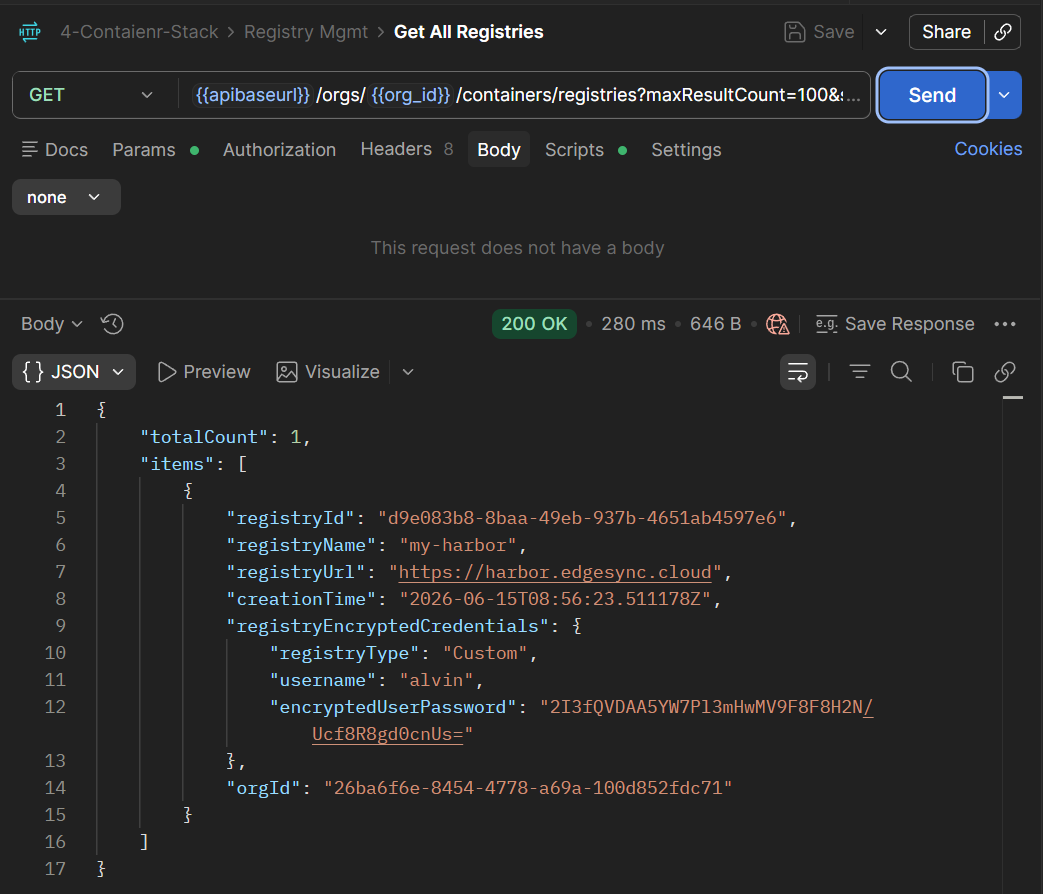
Example Request: Curl
curl --location --request GET 'https://{domain}/{tenantPath}/{appPath}/api/v1/orgs/{orgID}/containers/registries' \
--header 'Authorization: Bearer {access-token}'
Example Response
{
    "totalCount": 1,
    "items": [
        {
            "registryId": "d9e083b8-8baa-49eb-937b-4651ab4597e6",
            "registryName": "my-harbor",
            "registryUrl": "https://harbor.edgesync.cloud",
            "creationTime": "2026-06-15T08:56:23.511178Z",
            "registryEncryptedCredentials": {
                "registryType": "Custom",
                "username": "alvin",
                "encryptedUserPassword": "2I3fQVDAA5YW7Pl3mHwMV9F8F8H2N/Ucf8R8gd0cnUs="
            },
            "orgId": "26ba6f6e-8454-4778-a69a-100d852fdc71"
        }
    ]
}
Other APIs in the Registry Mgmt Collection
- Get Registry by ID: View details of a specific registry.
- Update Registry: Update registry configuration or credentials.
- Delete Registry: Remove a registry configuration.
3. Create Stack Configuration
In the previous chapter, you have completed the container registry registration and verified that the registry information is available in WEDA Cloud. Next, you will create the stack configuration for deployment, and this chapter uses the container selected in Chapter 1 (Intel OpenVINO Powered: Retail AI Self-Checkout) as the example.
This section follows a simple flow: prepare the docker-compose file, encode it, create the stack, and then verify the result.
You need a docker-compose.yml file to define your container stack configuration. You can either:
- Use the docker-compose.yml from the container you downloaded from ACC
- Create your own docker-compose.yml file
- Modify an existing template
Postman Collection: 4-Container-Stack > Stack Mgmt & Deployment
1. Download or Create docker-compose.yml
If you selected a container from Advantech Catalog, download the docker-compose.yml from the GitHub repository.
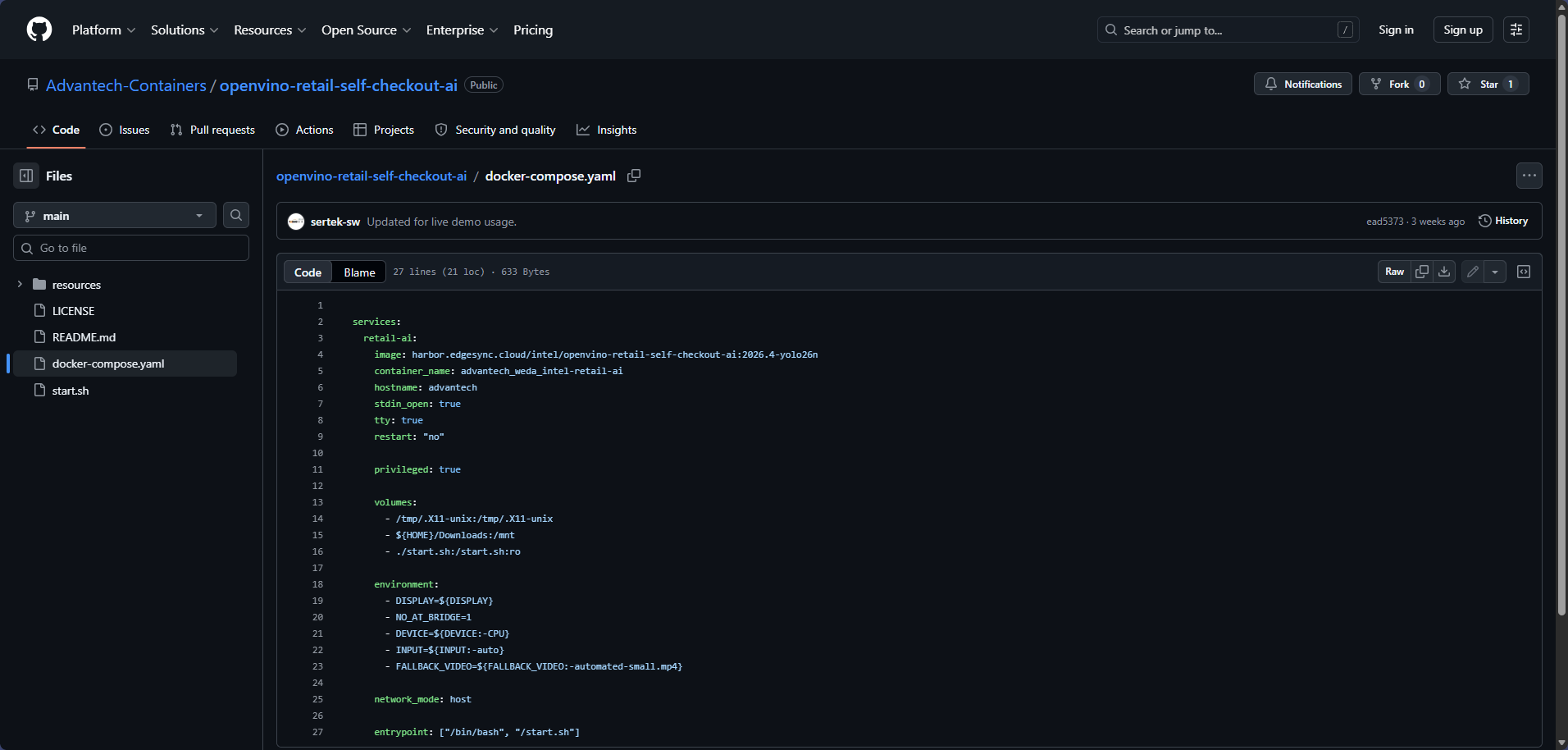
2. Encode Docker Compose File in Base64
The WEDA Stack API requires the docker-compose content to be Base64-encoded.
Copy the docker-compose.yml content and encode it in Base64 format. Use any online Base64 encoder or command-line tools.
Example command (Linux):
base64 -w 0 docker-compose.yml
Example command (macOS):
base64 < docker-compose.yml | tr -d '\n'
Example command (PowerShell):
[Convert]::ToBase64String([System.IO.File]::ReadAllBytes("path/to/docker-compose.yml"))
The encoded result will be used as composeFileContent in the stack creation API request.
The screenshot below shows an example using a web-based Base64 encoder.
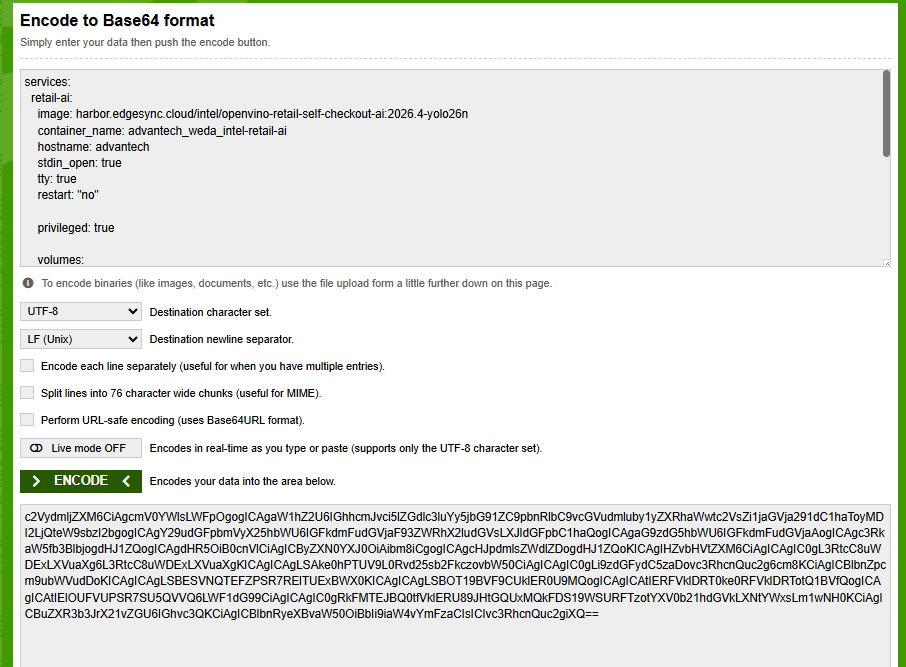
3. Create Container Stack
Use the following API to create a container stack with the Base64-encoded docker-compose content.
Create Stack: Create a container stack with the Base64-encoded compose file and reference the registry you registered in 2. Register Container Registry.
Expected result: WEDA Cloud returns 201 and provides the created stack configuration with a unique stackConfigId and stackRevisionId.
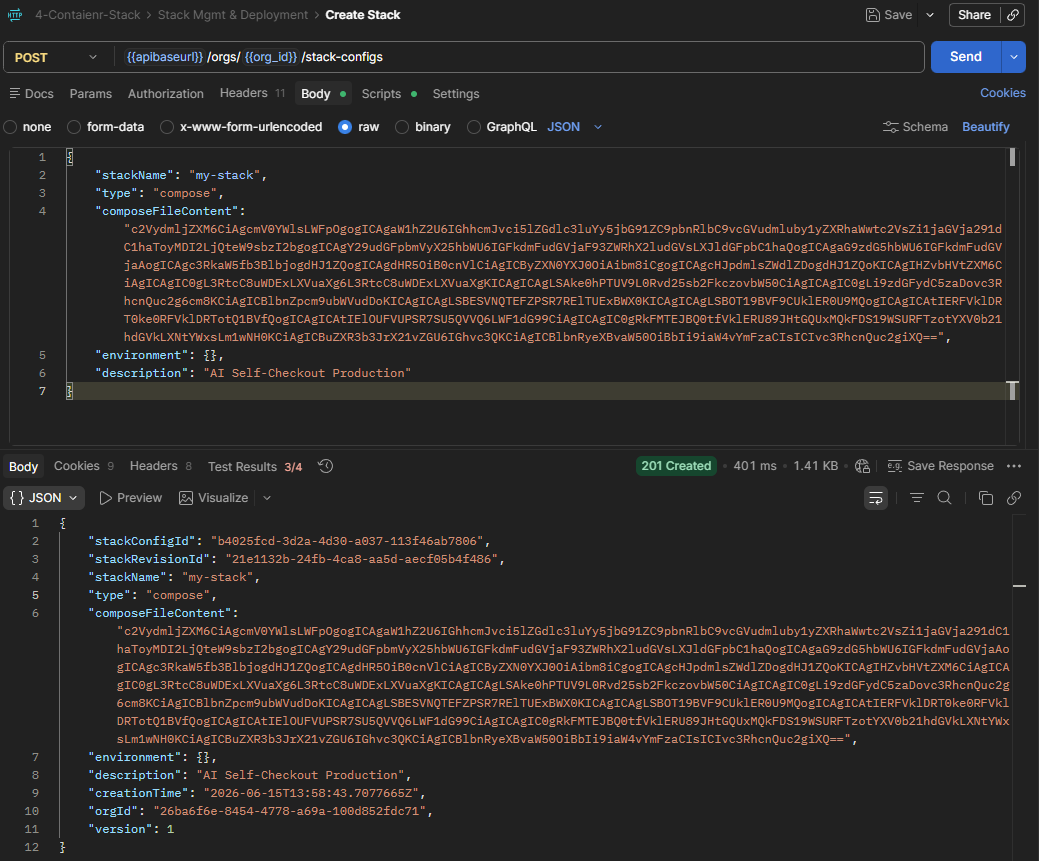
Example Request: Curl
curl --location --request POST 'https://{domain}/{tenantPath}/{appPath}/api/v1/orgs/{orgID}/stack-configs' \
--header 'Content-Type: application/json' \
--header 'Authorization: Bearer {access-token}' \
--data '{
  "stackName": "my-stack",
  "type": "compose",
  "composeFileContent": "{Base64-encoded}",
  "environment": {},
  "description": "AI Self-Checkout Production"
}'
Example Response
{
    "stackConfigId": "b4025fcd-3d2a-4d30-a037-113f46ab7806",
    "stackRevisionId": "21e1132b-24fb-4ca8-aa5d-aecf05b4f486",
    "stackName": "my-stack",
    "type": "compose",
    "composeFileContent": "{Base64-encoded}",
    "environment": {},
    "description": "AI Self-Checkout Production",
    "creationTime": "2026-06-15T13:58:43.7077665Z",
    "orgId": "26ba6f6e-8454-4778-a69a-100d852fdc71",
    "version": 1
}
4. Verify Stack Configuration
Use the following API to verify the stack was successfully created.
Get Stacks: Retrieve all stacks in your organization to confirm the new stack appears in the list.
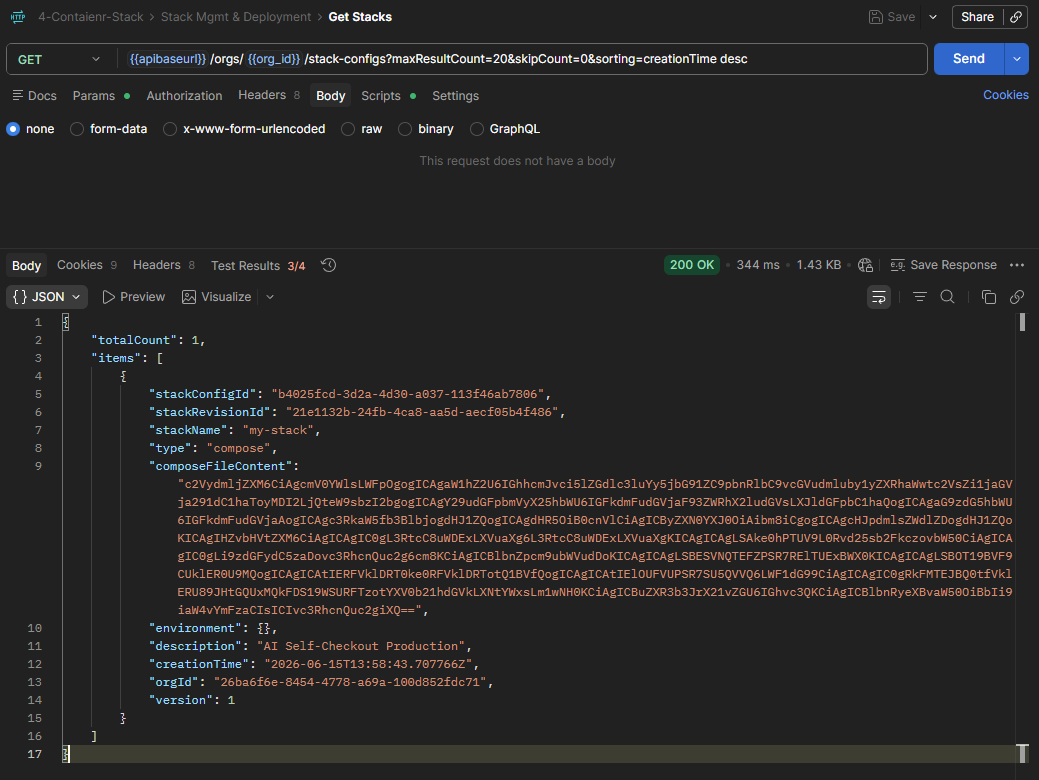
Example Request: Curl
curl --location --request GET 'https://{domain}/{tenantPath}/{appPath}/api/v1/orgs/{orgId}/stack-configs' \
--header 'Content-Type: application/json' \
--header 'Authorization: Bearer {access-token}'
Example Response
{
    "totalCount": 1,
    "items": [
        {
            "stackConfigId": "b4025fcd-3d2a-4d30-a037-113f46ab7806",
            "stackRevisionId": "21e1132b-24fb-4ca8-aa5d-aecf05b4f486",
            "stackName": "my-stack",
            "type": "compose",
            "composeFileContent": "{Base64-encoded}",
            "environment": {},
            "description": "AI Self-Checkout Production",
            "creationTime": "2026-06-15T13:58:43.707766Z",
            "orgId": "26ba6f6e-8454-4778-a69a-100d852fdc71",
            "version": 1
        }
    ]
}
4. Deploy Stack to Device
1. Deploy Container Stack
Now that you have created the stack configuration, deploy it to your edge device.
Deploy Stack to Device: Deploy the stack configuration to one or multiple edge devices.
Expected result: WEDA Cloud returns 200 and provides deployment information including the deploymentId and taskId. The status will typically show "deploying" initially.
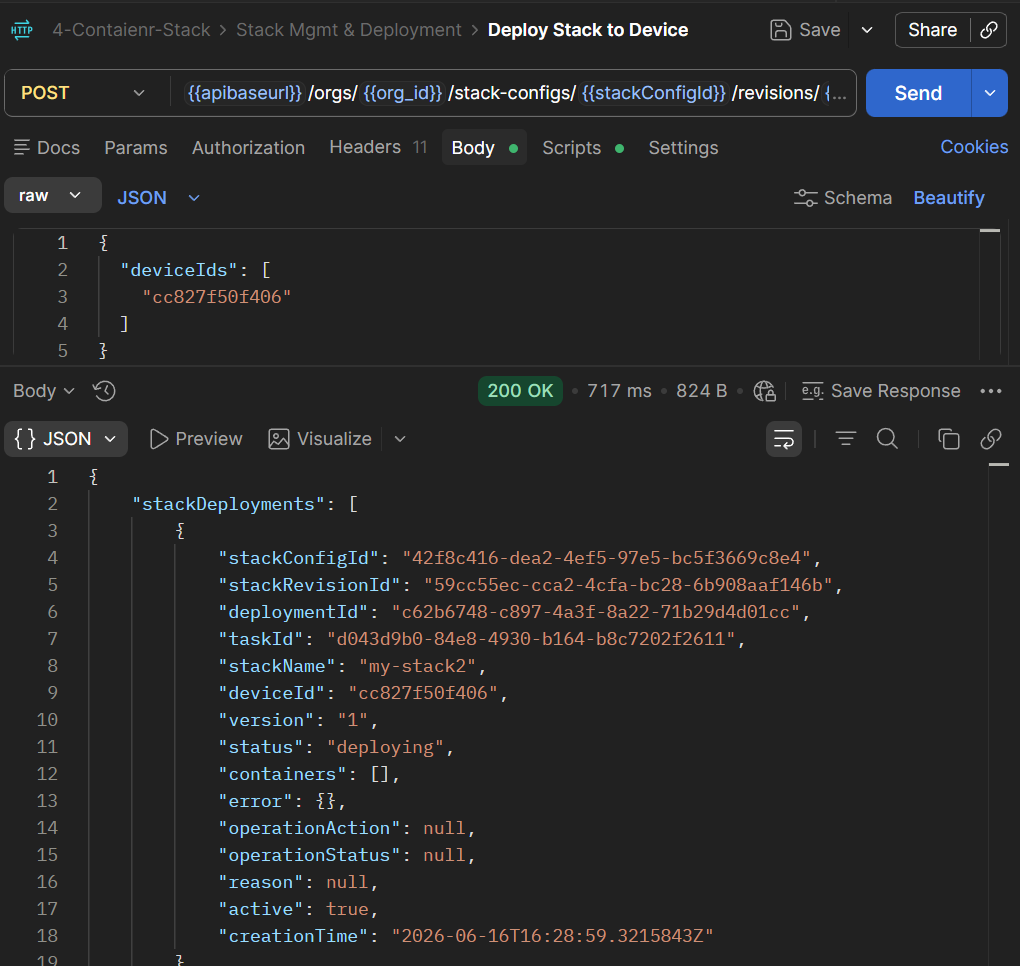
Example Request: Curl
curl --location --request POST 'https://{domain}/{tenantPath}/{appPath}/api/v1/orgs/{orgId}/stack-configs/{stackConfigId}/revisions/{stackRevisionId}:deploy' \
--header 'Content-Type: application/json' \
--header 'Authorization: Bearer {access-token}' \
--data '{
  "deviceIds": [
    "{deviceId}"
  ]
}'
Example Response
{
    "stackDeployments": [
        {
            "stackConfigId": "42f8c416-dea2-4ef5-97e5-bc5f3669c8e4",
            "stackRevisionId": "59cc55ec-cca2-4cfa-bc28-6b908aaf146b",
            "deploymentId": "c62b6748-c897-4a3f-8a22-71b29d4d01cc",
            "taskId": "d043d9b0-84e8-4930-b164-b8c7202f2611",
            "stackName": "my-stack",
            "deviceId": "cc827f50f406",
            "version": "1",
            "status": "deploying",
            "containers": [],
            "error": {},
            "operationAction": null,
            "operationStatus": null,
            "reason": null,
            "active": true,
            "creationTime": "2026-06-16T16:28:59.3215843Z"
        }
    ],
    "totalDevices": 1,
    "skippedDevices": 0,
    "newlyDeployedDevices": 1,
    "deviceActions": {
        "cc827f50f406": "add"
    }
}
Key Parameters:
stackRevisionId: The revision ID from the stack creation stepdeviceIds: Array of device IDs where you want to deploy the stackdeploymentId: Unique identifier for this deployment (used in verification step)status: "deploying" indicates the deployment is in progress
5. Verify Deployment Status
1. Query Deployment Result
After deploying the stack, use the following API to check the deployment status and verify that the containers are running on the edge device.
Query Deployment Result: Get the list of active stack deployments and check their current status.
Expected result: WEDA Cloud returns 200 with deployment details. When the status shows "running", the containers are successfully deployed and running.
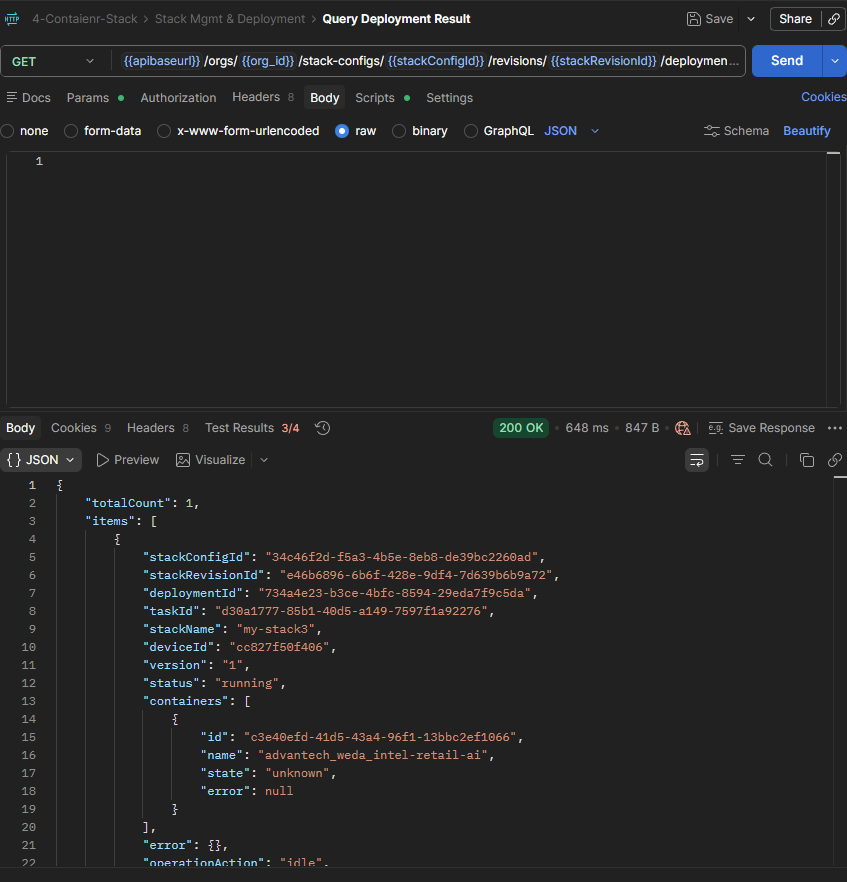
Example Request: Curl
curl --location --request GET 'https://{domain}/{tenantPath}/{appPath}/api/v1/orgs/{orgId}/stack-configs/deployments' \
--header 'Content-Type: application/json' \
--header 'Authorization: Bearer {access-token}'
Example Response
{
    "totalCount": 1,
    "items": [
        {
            "stackConfigId": "34c46f2d-f5a3-4b5e-8eb8-de39bc2260ad",
            "stackRevisionId": "e46b6896-6b6f-428e-9df4-7d639b6b9a72",
            "deploymentId": "734a4e23-b3ce-4bfc-8594-29eda7f9c5da",
            "taskId": "d30a1777-85b1-40d5-a149-7597f1a92276",
            "stackName": "my-stack",
            "deviceId": "cc827f50f406",
            "version": "1",
            "status": "running",
            "containers": [
                {
                    "id": "c3e40efd-41d5-43a4-96f1-13bbc2ef1066",
                    "name": "advantech_weda_intel-retail-ai",
                    "state": "unknown",
                    "error": null
                }
            ],
            "error": {},
            "operationAction": "idle",
            "operationStatus": "deployed",
            "reason": "",
            "active": true,
            "creationTime": "2026-06-17T03:08:15.966463Z"
        }
    ]
}
Deployment Status States:
deploying: Container is being deployed to the edge devicerunning: Container is successfully running on the edge devicefailed: Deployment failed - check theerrorfield for detailsactive: true: This deployment is currently active on the device
2. Verify Container Running Status
Confirm that the deployment has reached the "running" status and containers are healthy.
Key Parameters to Check:
status: Should be"running"containers: Array should contain your container definitionserror: Should be empty{}if deployment succeededactive: Should betruefor active deployments
If the response shows "status": "running", the container is successfully running on the edge device. Proceed to 6. Manage Container Commands to interact with your running containers.
If deployment shows status: "failed" or error is not empty:
- Check the
errorfield for specific error messages - Verify registry credentials are correct
- Confirm device connectivity to WEDA Cloud
- Review container configuration in the docker-compose file
Other APIs in the Stack Mgmt & Deployment Collection:
- Get Specific Stack Details: Get detailed configuration of a specific stack revision.
- Get Stacks Deployment under Device: View stack deployments on a specific device.
- Remove Stack from Device: Undeploy a stack from a target device.
- Delete Stack Revision: Delete a stack revision after related deployments are removed.
6. Manage Container Commands
1. Execute Container Commands
Once your containers are running, you can execute management commands such as pause, resume, and stop to control container execution.
Postman Collection: 4-Container-Stack > Stack Command
Execute Stack Command (Pause): Send a command to pause the container stack on the edge device.
Expected result: WEDA Cloud returns 200 with a command acknowledgement message indicating stack.pause was sent successfully.
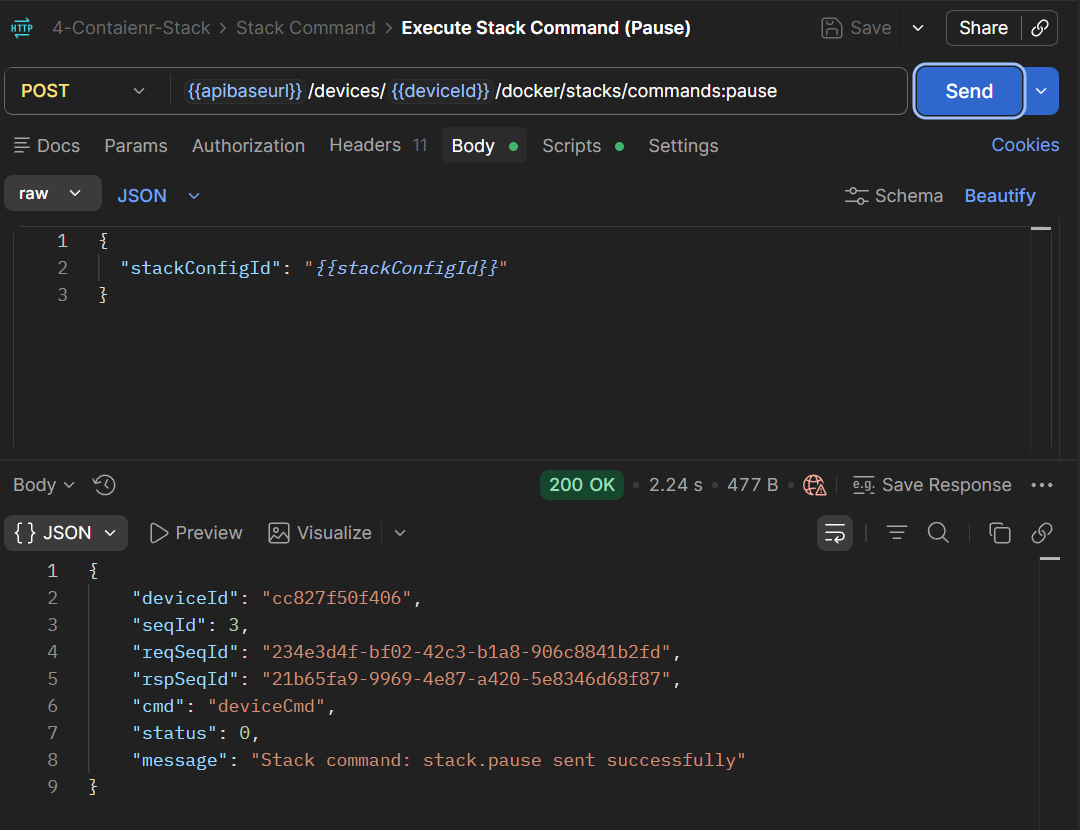
Example Request: Curl
curl --location --request POST 'https://{domain}/{tenantPath}/{appPath}/api/v1/devices/{deviceId}/docker/stacks/commands:pause \
--header 'Content-Type: application/json' \
--header 'Authorization: Bearer {access-token}' \
--data '{
  "stackConfigId": "{stackConfigId}"
}'
Example Response
{
    "deviceId": "cc827f50f406",
    "seqId": 3,
    "reqSeqId": "234e3d4f-bf02-42c3-b1a8-906c8841b2fd",
    "rspSeqId": "21b65fa9-9969-4e87-a420-5e8346d68f87",
    "cmd": "deviceCmd",
    "status": 0,
    "message": "Stack command: stack.pause sent successfully"
}
2. Query Command Execution Results
After executing a command, you can query the results to verify successful execution.
Postman Collection: 4-Container-Stack > Stack Command
Query Command Results - Latest Only: Get the latest command execution result.
Expected result: WEDA Cloud returns 200 with totalCount and latest command result entries. The response includes deviceCmd, execution status, timestamps, and stack-level resultData.
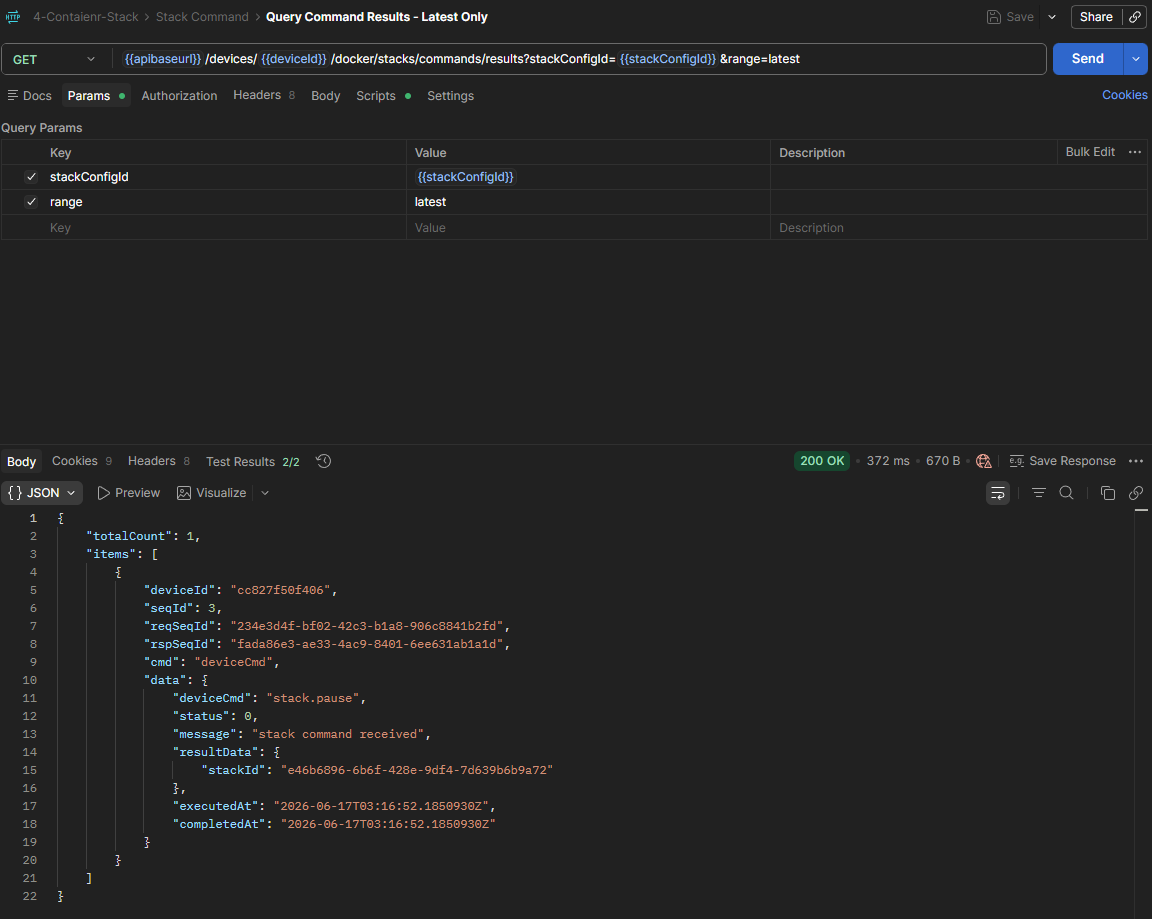
Example Request: Curl
curl --location --request GET 'https://{domain}/{tenantPath}/{appPath}/api/v1/devices/{deviceId}/docker/stacks/commands/results?stackConfigId={stackConfigId}&range=latest \
--header 'Authorization: Bearer {access-token}'
Example Response
{
    "totalCount": 1,
    "items": [
        {
            "deviceId": "cc827f50f406",
            "seqId": 3,
            "reqSeqId": "234e3d4f-bf02-42c3-b1a8-906c8841b2fd",
            "rspSeqId": "fada86e3-ae33-4ac9-8401-6ee631ab1a1d",
            "cmd": "deviceCmd",
            "data": {
                "deviceCmd": "stack.pause",
                "status": 0,
                "message": "stack command received",
                "resultData": {
                    "stackId": "e46b6896-6b6f-428e-9df4-7d639b6b9a72"
                },
                "executedAt": "2026-06-17T03:16:52.1850930Z",
                "completedAt": "2026-06-17T03:16:52.1850930Z"
            }
        }
    ]
}
Common Container Commands:
pause: Temporarily pause all containers in the stackresume: Resume paused containersstop: Stop and shutdown containersrestart: Restart containers
Use command execution results to verify that the edge device successfully applied your commands.
Other APIs in the Stack Command Collection:
- Execute Stack Command (Resume): Resume a paused container stack.
- Query Command Execution Logs: View logs of command execution on the edge device.
- Query Command Results - Without Range Parameter: Get all command execution results.