4.5 DingTalk Notification Configuration
4.5.1 Notification Method Configuration
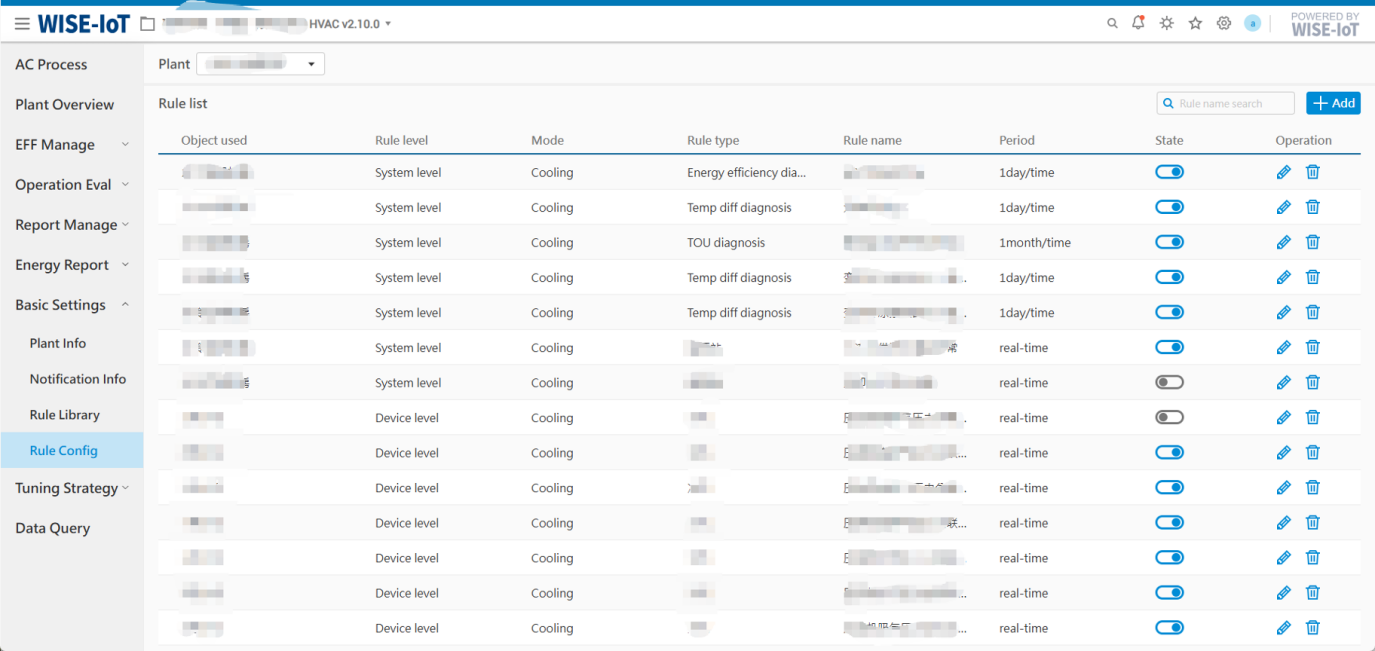
After entering the Message Push platform, click the "+" button in the upper right corner, select "DingTalk", and save, as shown in the figure below.
4.5.2 Notification Group Configuration
Once the DingTalk message notification method has been created, you need to add notification personnel information. The operating steps are as follows:
Step 1: In the Group List, select the DingTalk notification method, then click the add group button on the right side to enter the personnel addition page.
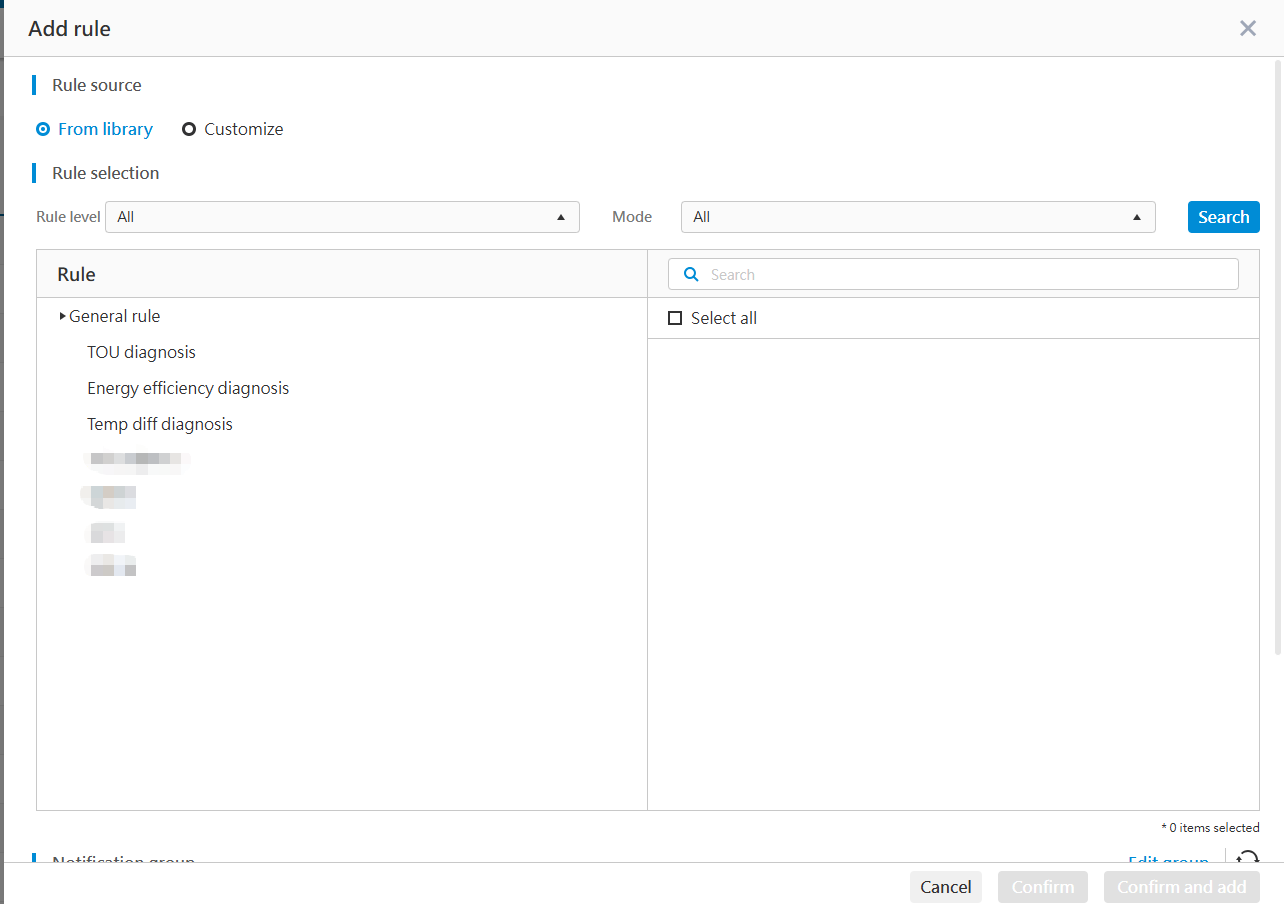
Step 2: For DingTalk existing staff group information, fill in the DingTalk group's Webhook URL and Secret. You need to fill in the following information:
- Group members: Fill in the name
- WebHook URL and Secret: Enter the DingTalk Group's Webhook URL and Secret
Steps to obtain Webhook URL and Secret:
Refer to the DingTalk official documentation for obtaining the custom robot Webhook URL and Secret key.
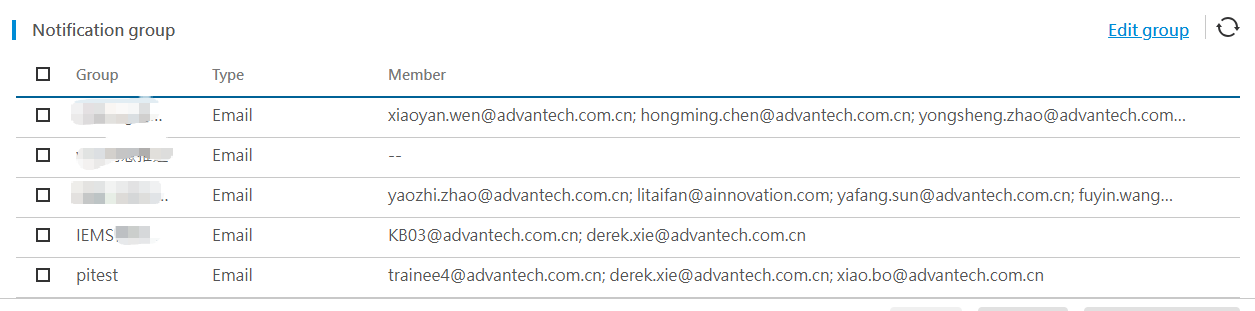
Multiple groups can be added here. After each addition or edit, you need to click the save button.