3.4 Rule Configuration
Configure rules for specific equipment or system nodes. After clicking the add button, you can directly select the required rules from the rule library to bind with energy stations, or create custom new rules for different nodes.
The rule list displays each rule according to the nodes with configured rules. Each rule supports enable/disable, edit, and delete operations. Rules with disabled status will not perform diagnosis.
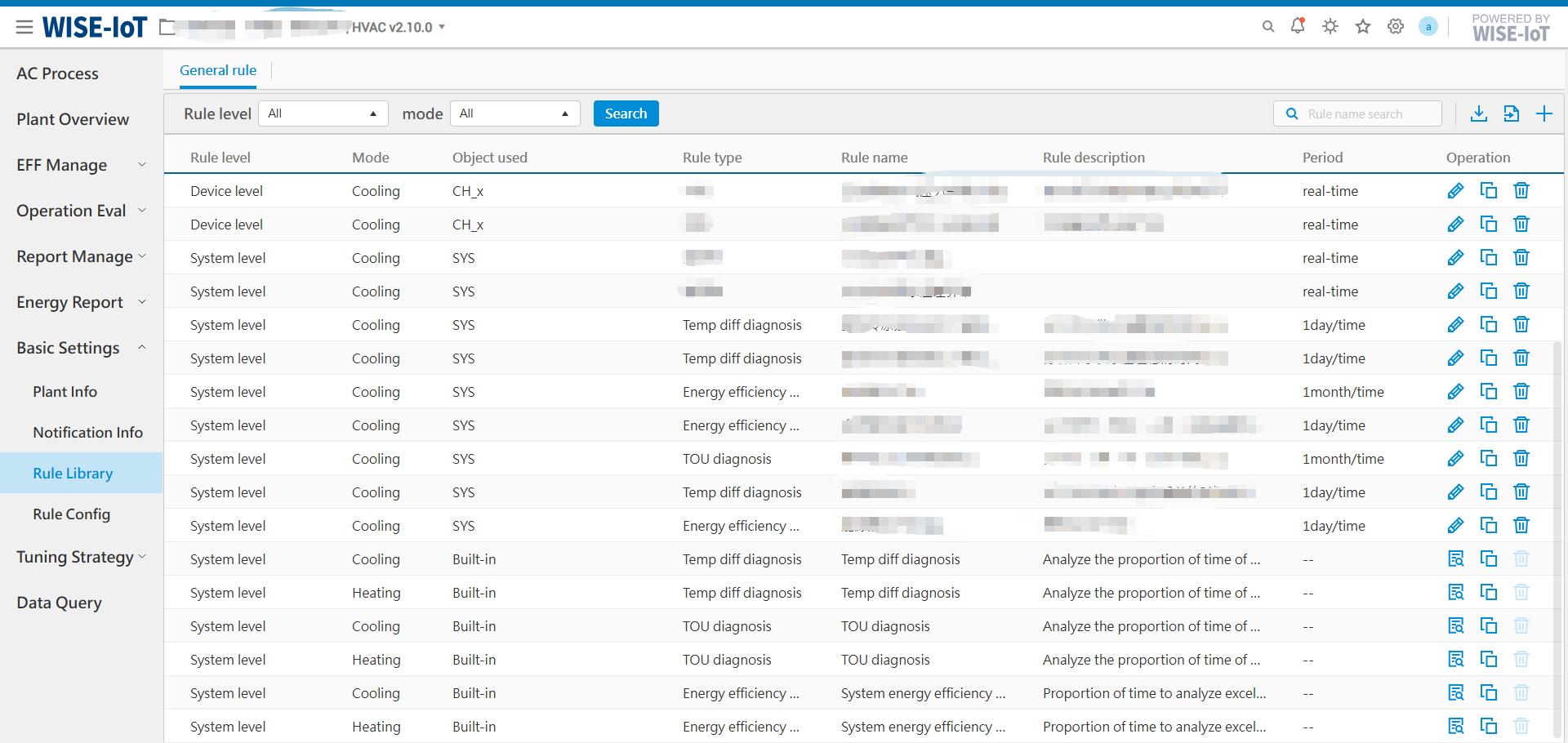
3.4.1 Apply Diagnostic Rule Library Templates
Directly apply rules from the template library to selected energy stations. This primarily includes two components:
-
Select Applicable Rules: Select applicable rules for energy station nodes from the rule template library, with filtering support by rule level and mode.
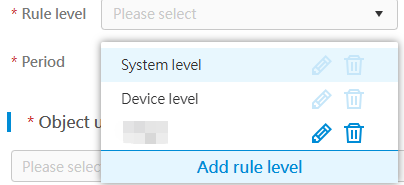
Note: The rule levels in "Apply rules from the diagnostic rule library", "Custom rules", and the rule library are synchronized. Any newly added rule levels—whether added directly to the rule library or under Rule Configuration > Custom Rules—will be visible in all three sections upon the next viewing.
-
Configure Notification Groups: Configure notification groups for rules when trigger conditions are met, with support for three real-time notification channels: email, DingTalk groups, and WeChat Work. (For notification group setup instructions, refer to the link in Section 4)
Upon successful configuration, the system will display each rule instance separately for every usage object in the rule list.
Note: A 'usage object' represents energy station nodes sharing the same template. Example: When applying the CH_x template (designed for individual chillers) to two chillers in the station, the system will generate two distinct rule entries - 'Chiller 1' and 'Chiller 2' - in the rule list. Each rule instance can be modified or deleted independently.
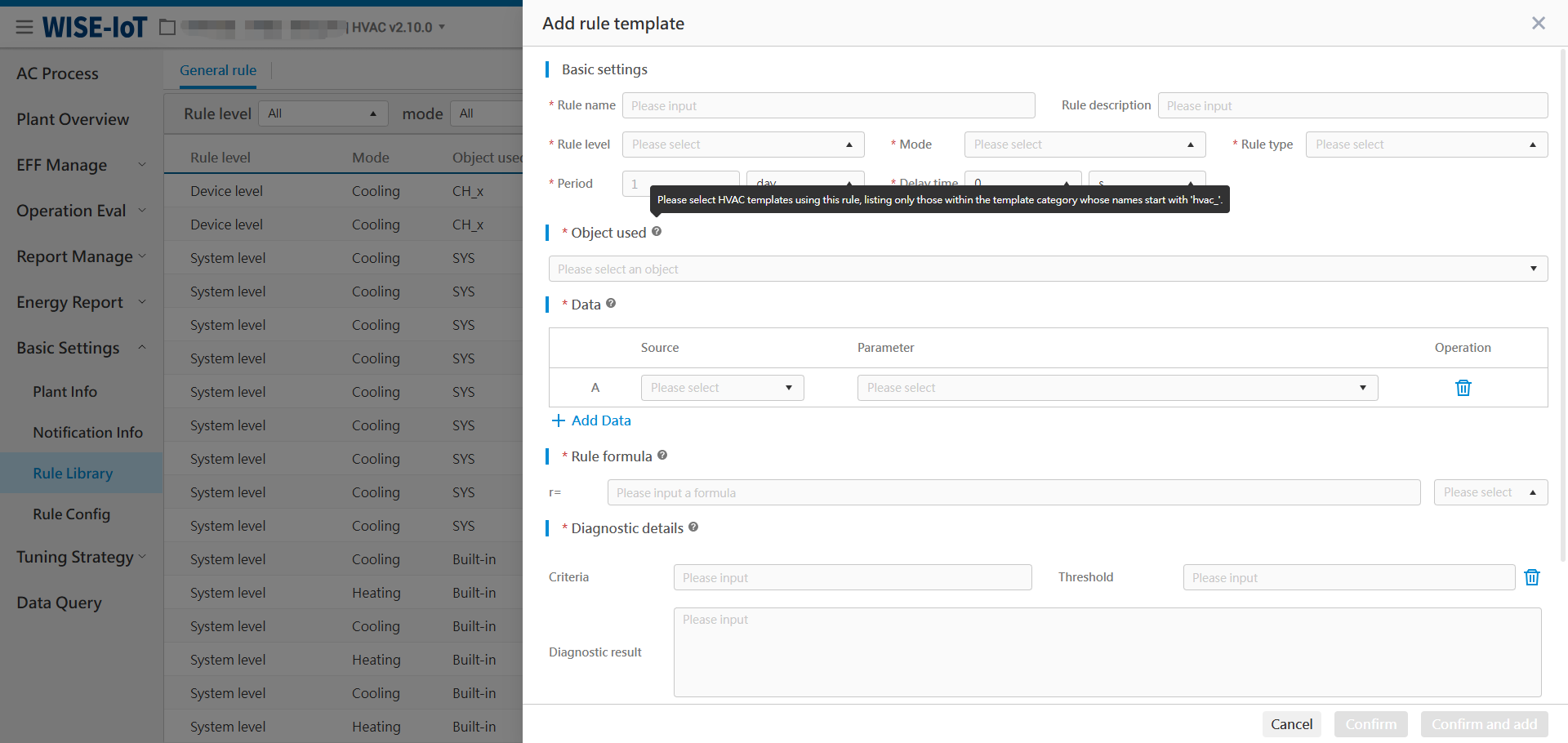
3.4.2 Custom Rules
Configure node-specific rules directly.
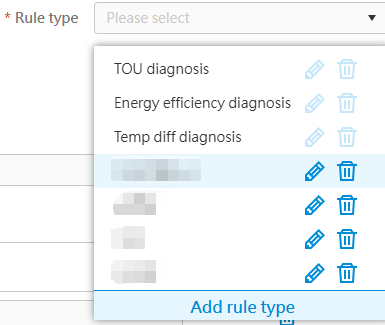
The configuration fields for custom rules are similar to those in the "Add/Edit Rule Template" section (3.3 Rule Library), with the following key differences:
Target Object: Refers specifically to HVAC asset group nodes, with selection restricted to either energy station nodes or their subordinate nodes (including both direct and indirect child nodes), as shown in the following example:

Data Items: Parameters can be selected from either the current node (the target object itself) or other nodes within the same selection scope as the target object (energy station nodes or their subordinate nodes), as demonstrated in the following example of selecting parameters from other nodes:

Notification Group Configuration: Configures notification groups for triggered rules (same configuration method as in Section 3.4.1 "Applying Diagnostic Rule Library Rules).
Upon successful configuration, the system will display the rules in the rule list. Users can disable, modify, or delete rules as needed.