Software Installation and Setup for Windows Server
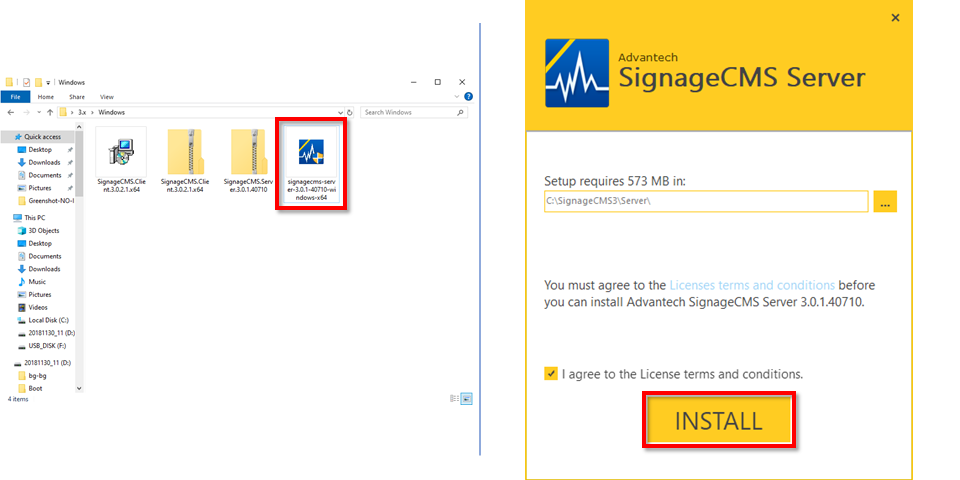
After obtaining the installation file, click on the file to begin the installation process. Once the procedure starts, click the "INSTALL" button to install the software.
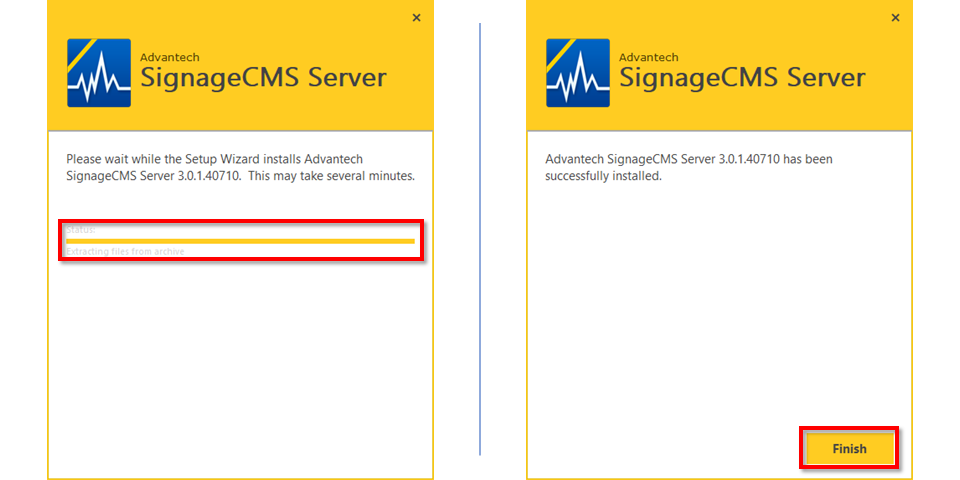
Depending on hardware performance, the installation time may range from a few minutes to over ten minutes. Please wait patiently. Once the installation is complete, click the "Finish" button to finalize the process.
After installation, the Server Setup page will automatically open. Since serial number activation is an online verification process, before activating the serial number, please connect the network cable and ensure the device is online. Enter the 16-digit activation serial number and click "Activate" to activate the serial number.
Note If the setup screen does not appear, please go to "Start --> SignageCMS3 --> Server Setup" to bring up the setup screen.
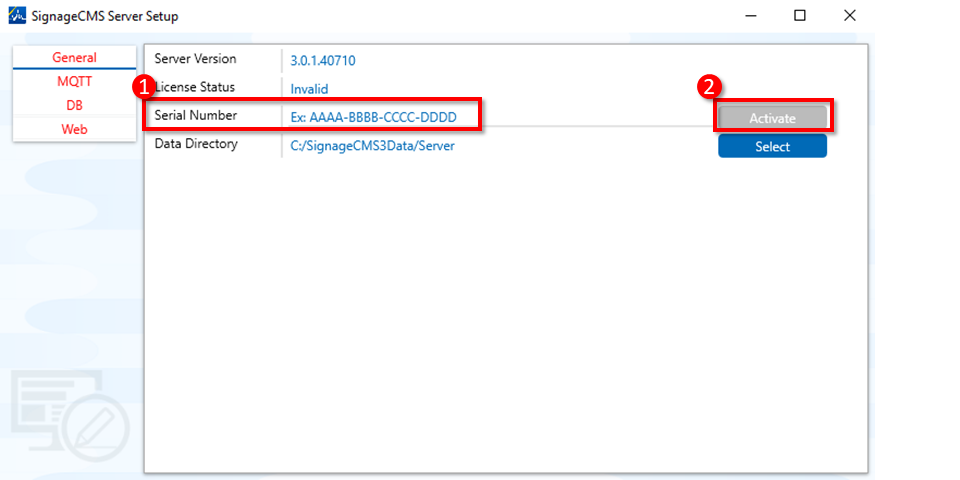
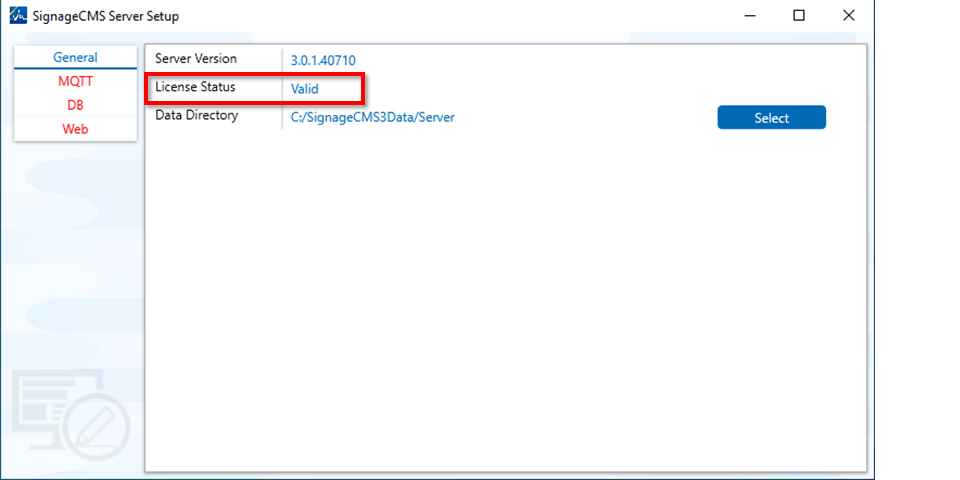
Once the serial number activation is complete, the status of the serial number will display as "Valid," indicating successful activation.
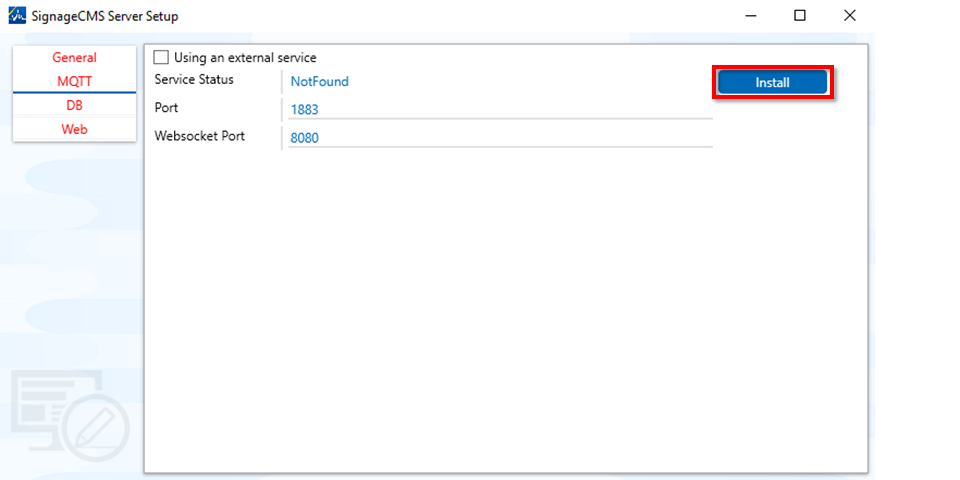
Click on the "MQTT" page, then click the "Install" button to install and activate the service.
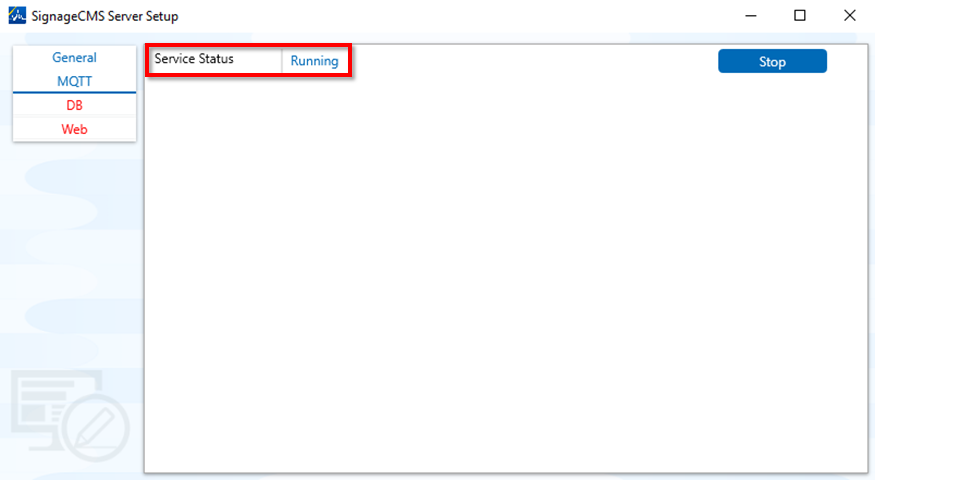
Once the installation is complete, the service status will display as "Running." If it fails to activate properly, please check if Port 1883 is being used.
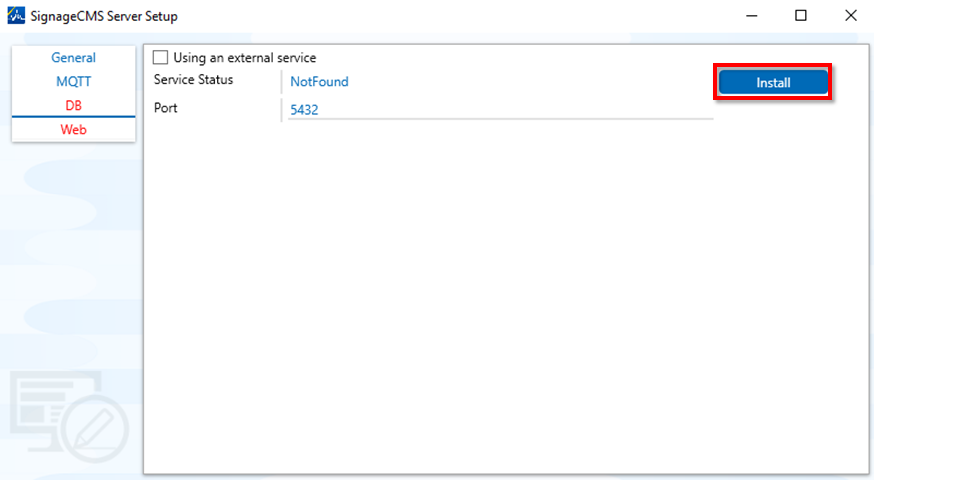
Click on the "DB" page, then click the "Install" button to install and activate the service.
Once the installation is complete, the service status will display as "Running." If it fails to activate properly, please check if Port 5432 is being used.
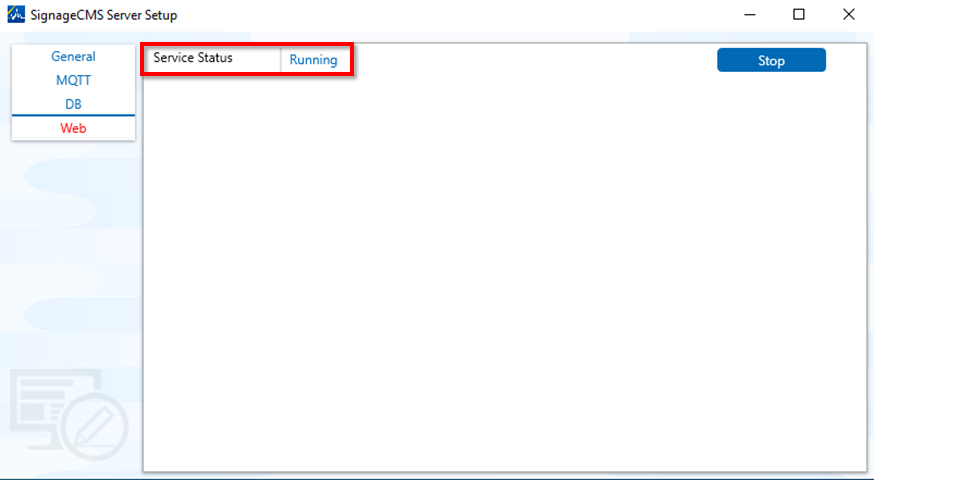
Click on the Web page and fill in the URL field with http://{domain or IP address}:{Port}/, to ensure the dispatch and alert notification functions operate properly.
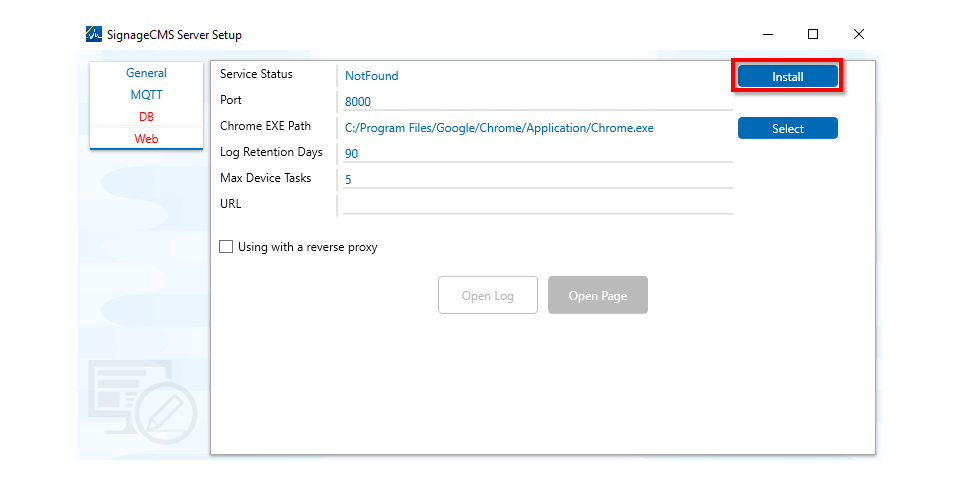
Once completed, click the Install button to install and enable the service.
Note Before installing the Web service, please ensure that Chrome browser is installed on the computer to ensure that the web page can be opened correctly.
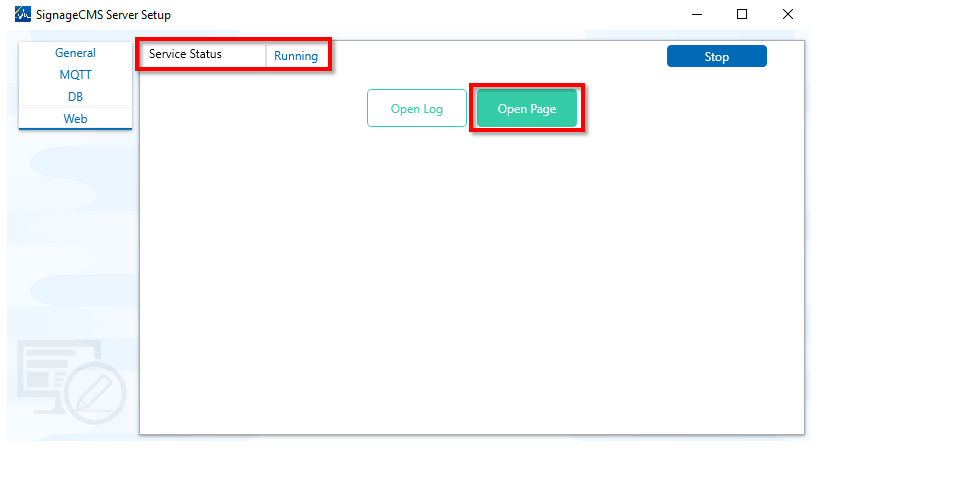
Once the installation is complete, the service status will display as "Running." If it fails to activate properly, please check if Port 8000 is being used. Once everything is confirmed, click "Open Page" to open the homepage.
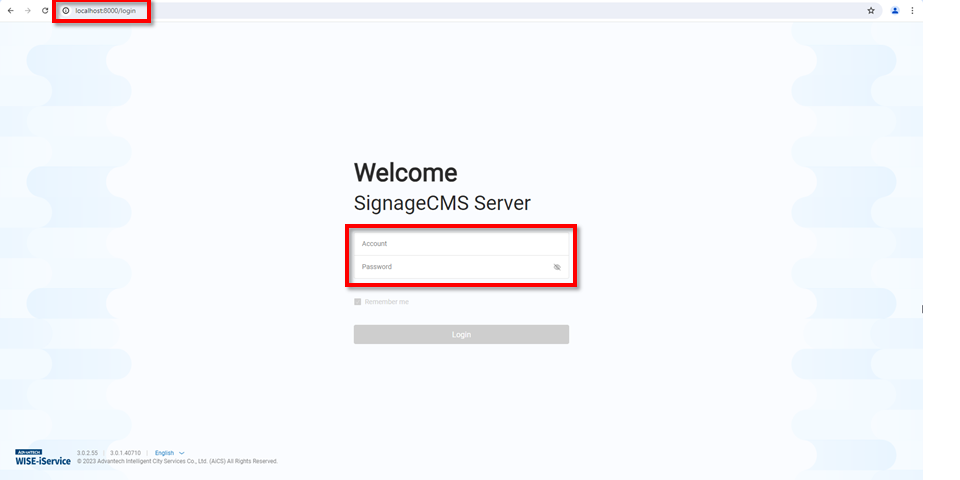
The default login username and password are both "admin." After entering them, click the "Login" button.
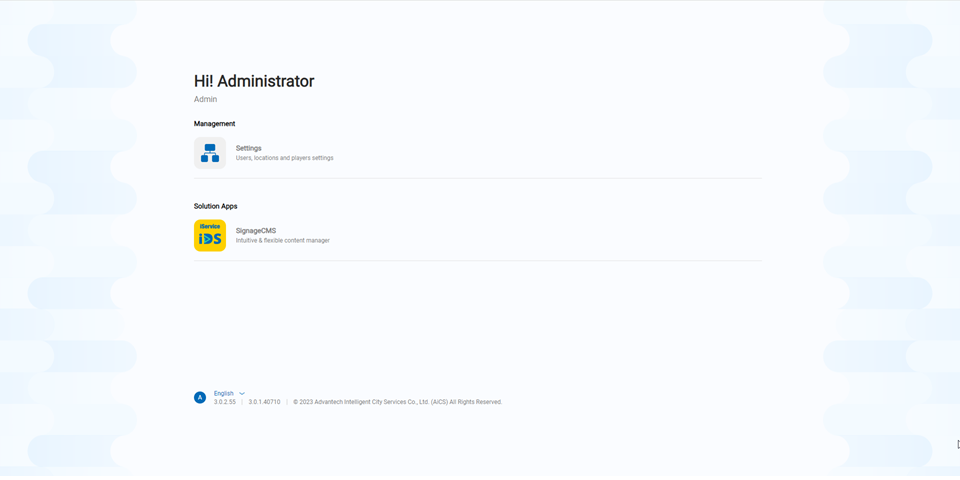
Seeing the homepage indicates that all settings have been successfully completed.