Network
The system provides a flexible and user-friendly network configuration feature, allowing users to easily set up network connections and related settings for their devices. Through this feature, users can choose the appropriate network type (such as Wi-Fi or wired network) and configure the necessary network details, such as IP address, subnet mask, gateway, DNS server, etc., ensuring that the device can communicate smoothly with other network devices.
 A.【Network List】 ⇒ The list displays the network interface cards equipped with VisionSense Edge. See below.
- Network Interface: It displays the name of the network interface card, which is generated by the operating system by default.
- Mode: It displays the method used by the network interface card to obtain an IP address. "Static" means a fixed IP address, while "DHCP" means the IP address is obtained automatically.
- Mac: It displays the network hardware address of the network interface card.
- Address: The IP address of the network interface card.
- DNS: The currently used DNS server address.
- Route: The currently used default gateway address.
- Action: Click the
 'Edit' to enter the edit page and modify the network card configuration.
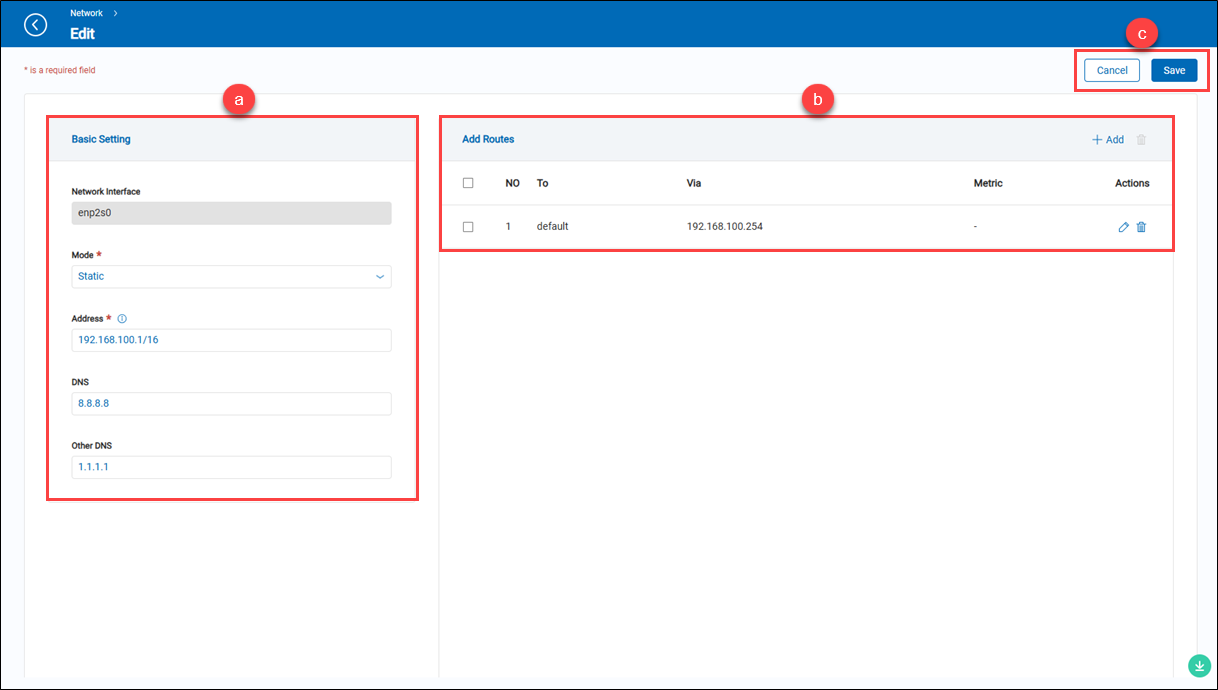
a.【Basic Setting】
- Network Interface: (Unwritable) The name of the network interface card.
- Mode: Set the mode of operation for the network interface (e.g., DHCP, Static).
- Address: Enter the IP address for the network interface. This is the address assigned to your selected network interface.
- DNS: Enter the primary Domain Name System server address. This server translates domain names into IP addresses.
- Other DNS: Enter the secondary Domain Name System server address. This server translates domain names into IP addresses.
b.【Add Route】
- To: The destination address or network.
- Via: The IP address of the next-hop router.
- Metric: The priority of the route, where a smaller value indicates a higher priority.
- Action: Click the 'Edit' to enter the edit page or click the
 'Delete' to delete the assigned item.
c.【Operation】 Click the 'Save' to apply all settings or the 'Cancel' to return to the previous page without saving.
> About the route settings 【To】 This is the destination address of the route. It specifies the IP address of the target network or host. When a packet is sent to this destination, the router will make its routing decision based on this entry. For example, if you want to set a route for packets to be sent to the 192.168.1.0/24 network, the "To" would be the IP address range of that network. 【Via】 This is the next hop where the packet will be forwarded, which indicates which router or gateway the packet should go through. It specifies the exit IP address or the IP address of the next-hop router. For example, suppose your target is the 192.168.1.0 network, and the packet needs to pass through a router with the IP address 192.168.0.1, then "Via" would be 192.168.0.1. 【Metric】 This is a value used to represent the priority or cost of the route. The smaller the value, the higher the priority of the route. When there are multiple routes to the same destination, the router will select the route with the smallest metric as the best path. For example, if there are two paths to the same destination, one with a metric of 10 and the other with 20, the router will choose the route with the metric of 10.
B.【Fast Setting】 ⇒ Users can also use the "Fast Setting" feature to easily configure the network card settings.
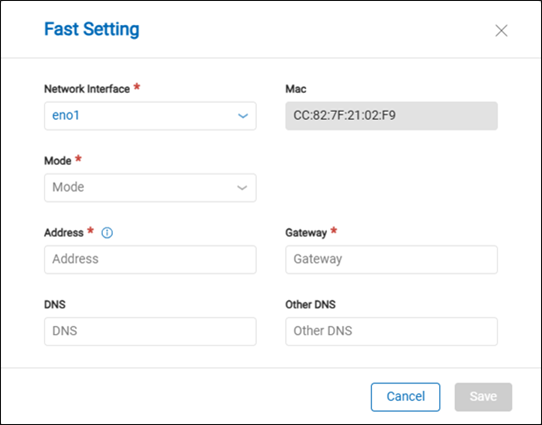
- Network Interface: Network Interface Card option: Select the network interface card to configure.
- Mac: The network hardware address of the selected network interface card.
- Mode: Set the mode of operation for the network interface (e.g., DHCP, Static).
- Address: Enter the IP address for the network interface. This is the address assigned to your selected network interface.
- Gateway: Enter the gateway address. This is the IP address of the router that your device will use to access the internet and other networks.
- DNS: Enter the primary Domain Name System server address. This server translates domain names into IP addresses.
- Other DNS: Enter the secondary Domain Name System server address. This server translates domain names into IP addresses.
C.【System Resource & Account Info】 ⇒ It displays the system resource overview.
- CPU: It displays the current usage and performance of the Central Processing Unit.
- RAM: Shows the amount of Random Access Memory being used and available.
- HDD: Indicates the storage capacity and usage of the Hard Disk Drive.
- Server Time: The current time of the server is displayed.
- Account info:
- Language: There are two languages supported: English and Traditional Chinese. Users can change the app language using the 'Language' option.
- Server Restart: Users can click the 'Server Restart' to restart the main services of the VisionSense Edge.
- Logout: Users can click the 'Logout' to log out of the system.
- System Version: It displays the version of the 'System Management' services.
